Convidar colaboradores
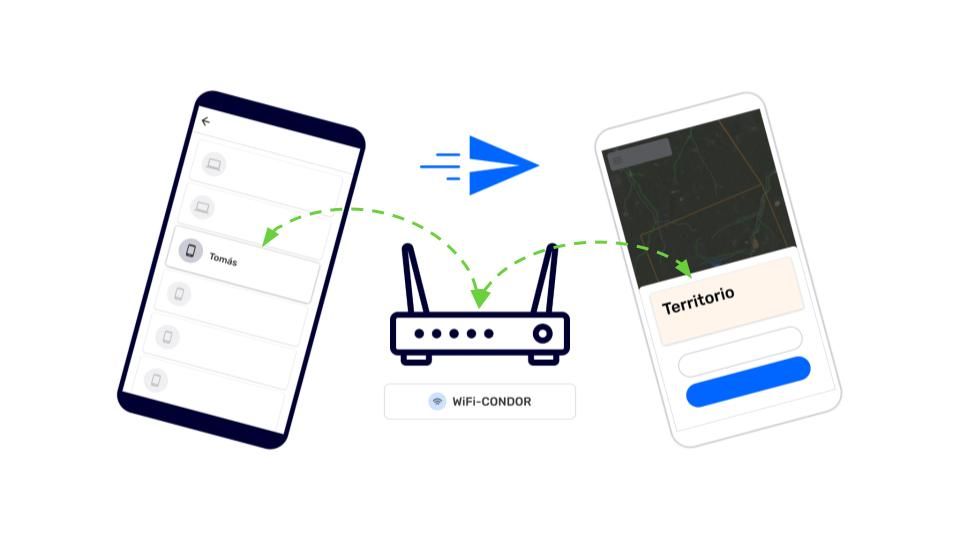
Collaborators are people who work as a team to gather and share information together. CoMapeo does not recognize people, but it does recognizes devices through a unique Device ID. To make it easier to associate a Device ID with a person, CoMapeo will display the associated Device Name as shown in CoMapeo Settings.
Only  Coordinators can invite collaborators to a CoMapeo Project by
  Inviting Devices either when setting up a project, or when reviewing the
  Team list.
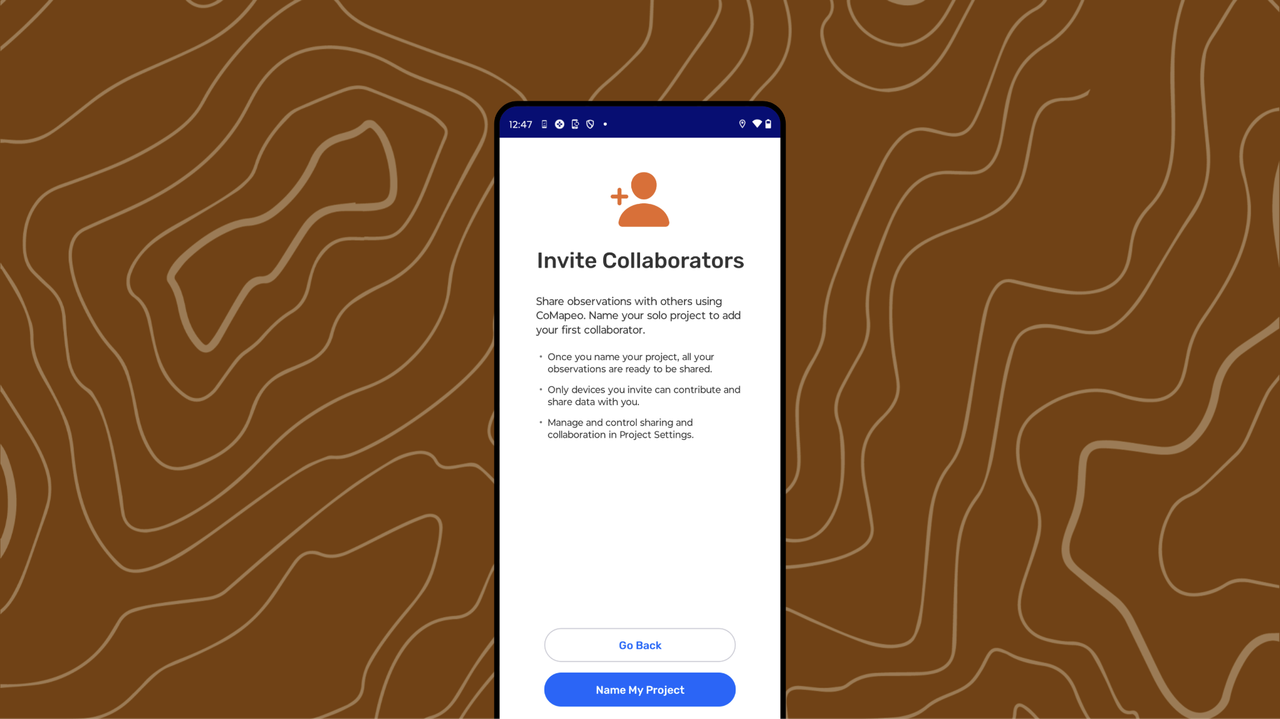
Why invite collaborators to your projects?
Mapping with others makes the work more powerful. When people collect information together, more ground can be covered to create shared mapping data. CoMapeo is designed to support the exchange of mapping information as a team with, even when offline.
 Exchange cannot be used without collaborators.
When gathering information with CoMapeo, there are three ways to start collaborating with others.
-
Starting a New Project Go to 🔗 Creating a New Project for full details
-
Inviting a Collaborator to My Solo Project
-
Inviting a Collaborator to an existing Project
-
Joining an Existing Project
ake sure any devices being invited have CoMapeo Installed and a name added. Go to 🔗 Installing CoMapeo & Onboarding to learn more
Inviting a Collaborator to a Solo Project
A solo project needs to be converted into a collaboration before a teammate can be invited to join the work started on CoMapeo Mobile.
Step by Step -  Mobile
Step 1: Go to the  Menu.
Menu.
Step 2: Tap on Collaborate.
Step 3: Select Invite Devices
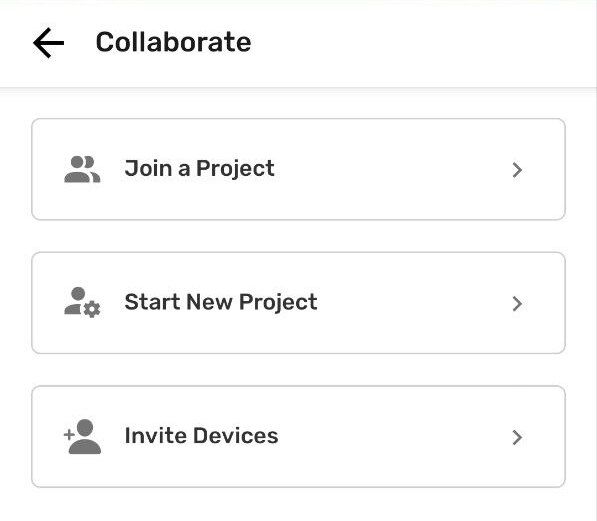
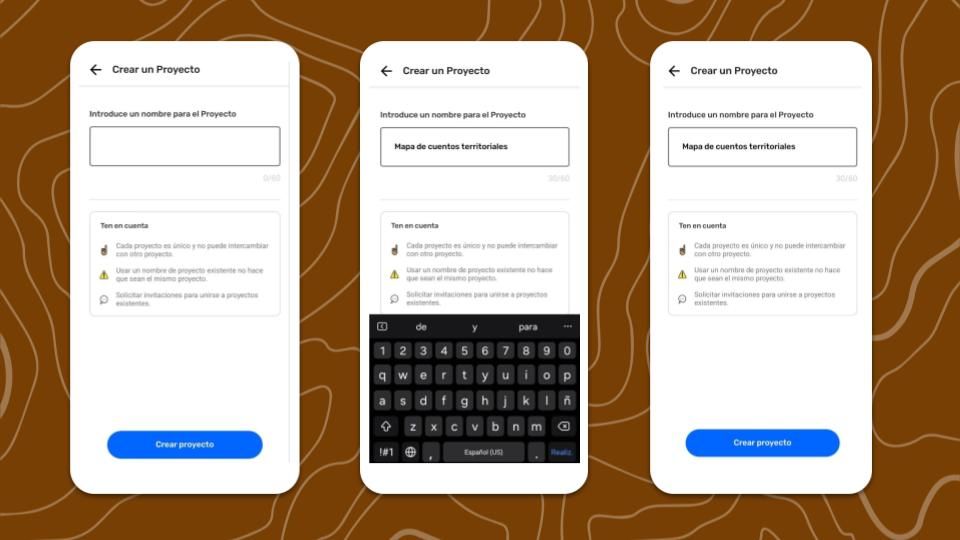
Step 4: Add a project name and continue
Step 5: Select a  Project Statistics option. This can be changed in Coordinator Tools
Step 6: The project is now ready to invite collaborators
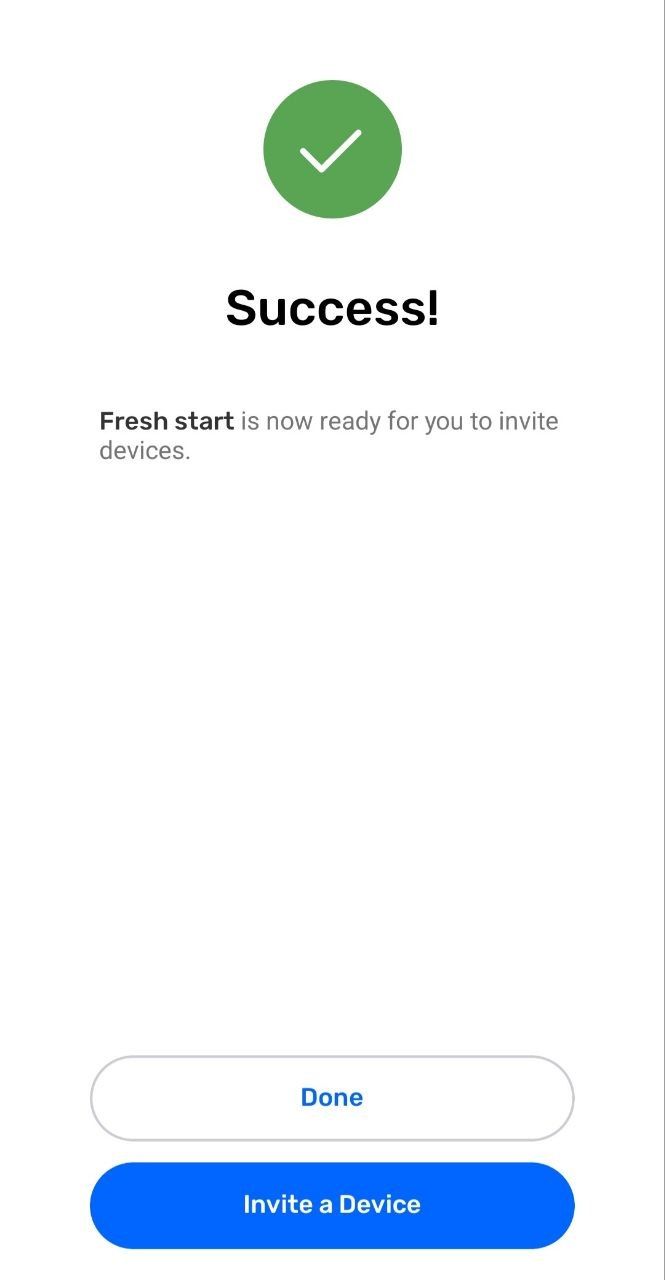
Inviting a Collaborator and Existing Project
A device with a coordinator role can invite other devices to respective projects.
Step by Step
Step 1: Go to the Menu.
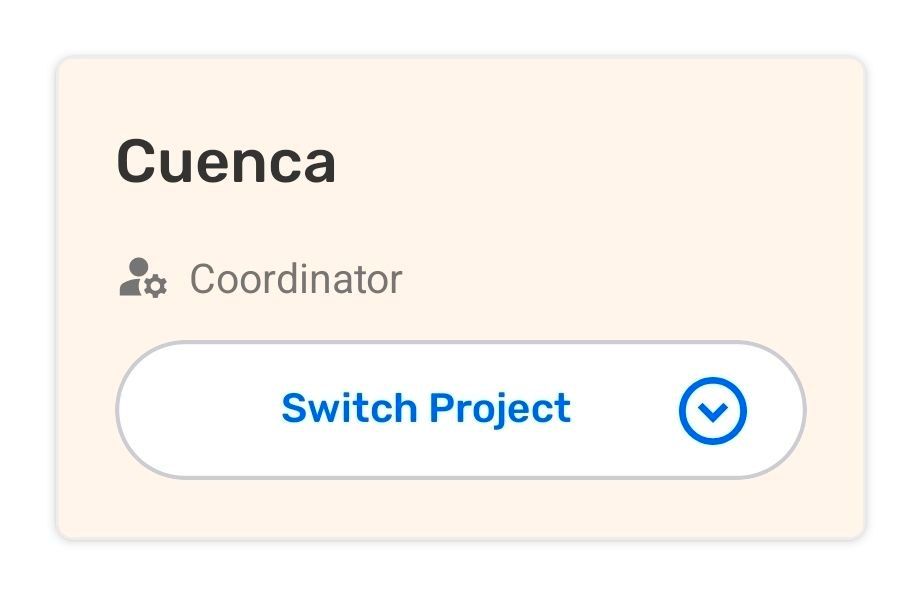
Step 2: Review the project card to confirm it is the project that other devices are to be added to. If not, tap Change Project to see options and select the correct project.
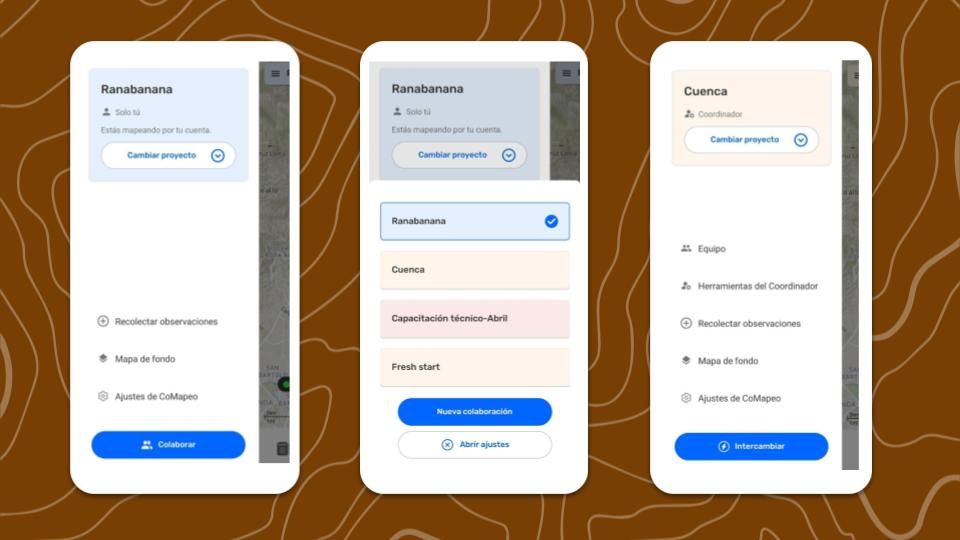
Step 3: Tap on Team
Step 4: Tap Invite device
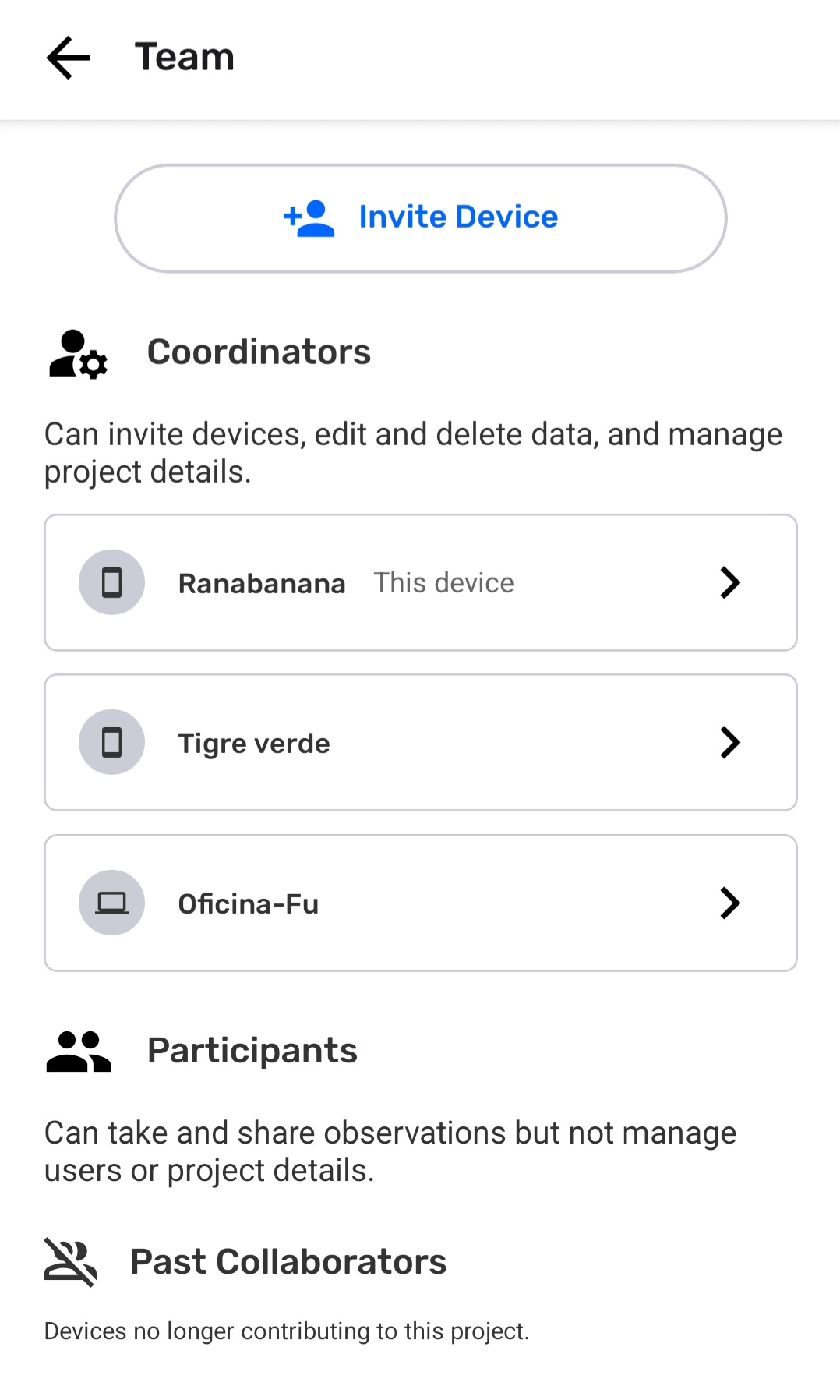
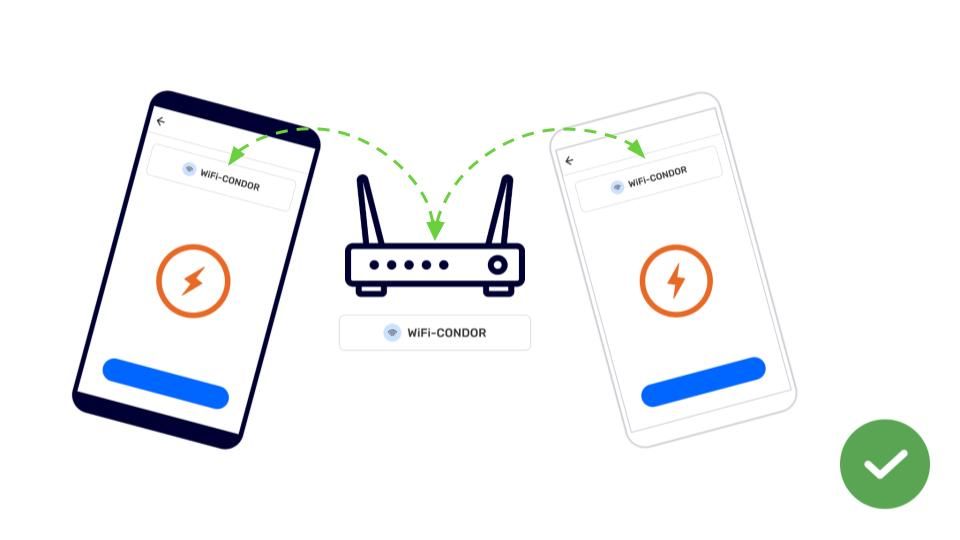
Step 5: Connect both devices to the same  Wi-Fi-Router and keep CoMapeo open
Step 6: CoMapeo will display any device with CoMapeo open and using the same Wi-Fi not already in the project. In addition to the Device Name and part of the Device ID it will also display if it is a  desktop or
  mobile device.
Select the device to be Invited.
mobile device.
Select the device to be Invited.
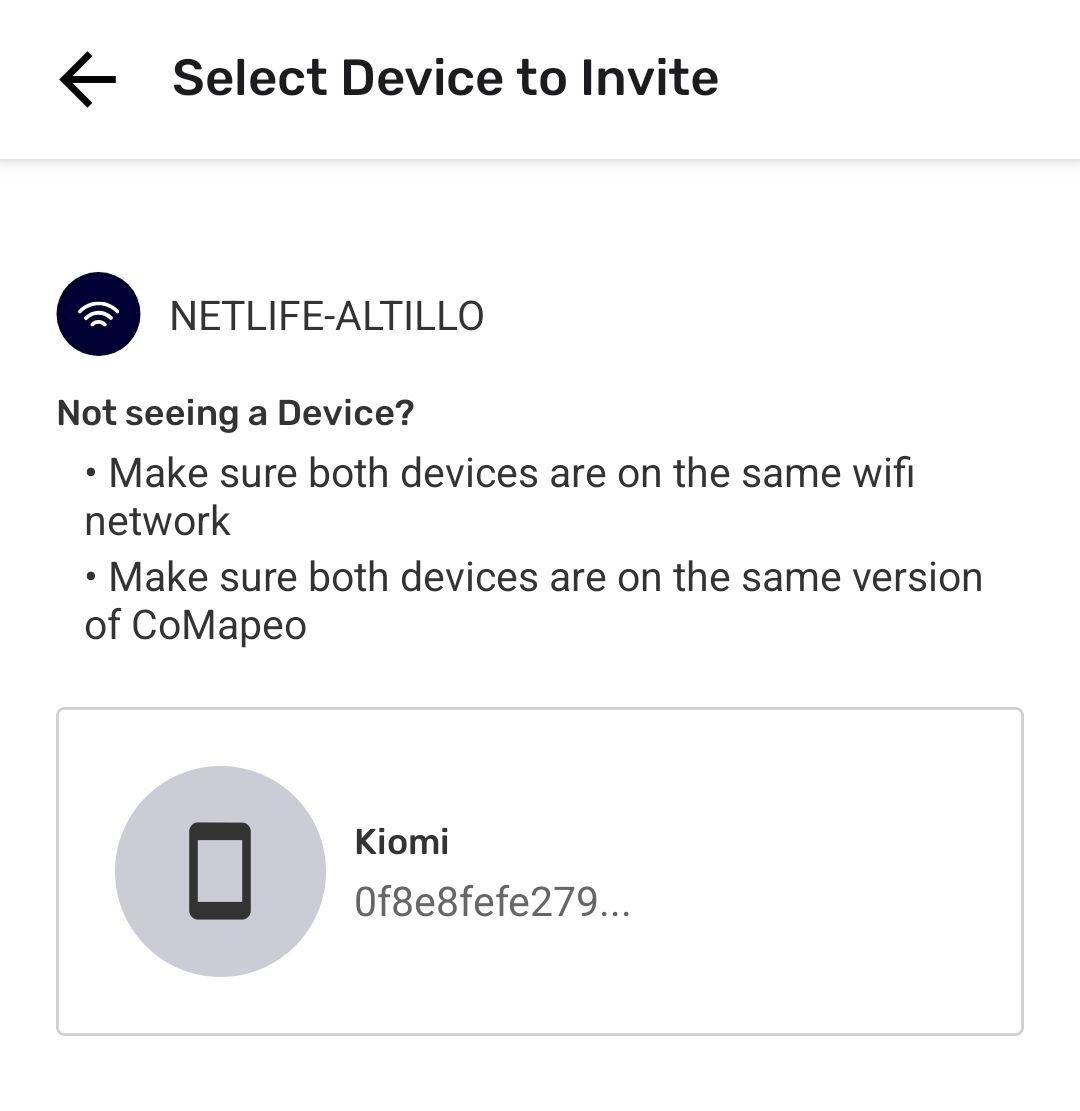
Disconnection happens if the device being invited is not open and active. If the screen saver was activated, wake up the device and open CoMapeo again to reconnect.

CoMapeo Desktop is Early Access at the moment with ongoing improvements to make. It may take several minutes for a device with CoMapeo Desktop to appear in the list. Once it appears, proceed with Invite as usual.
Step 7: Select role for the device to be invited. Go to 🔗 Selecting Device Roles and Teams to learn more
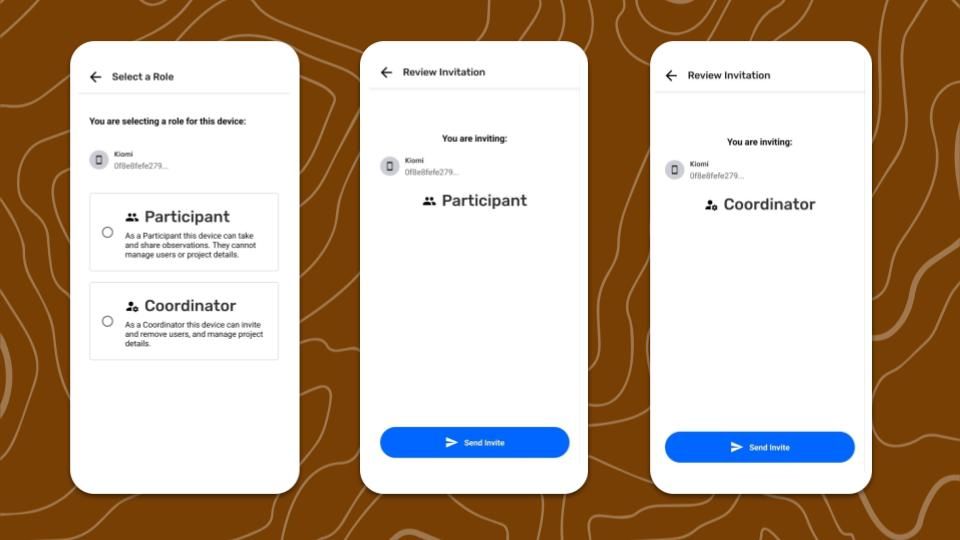
Step 8: Tap  Send Invite the device to be invited.
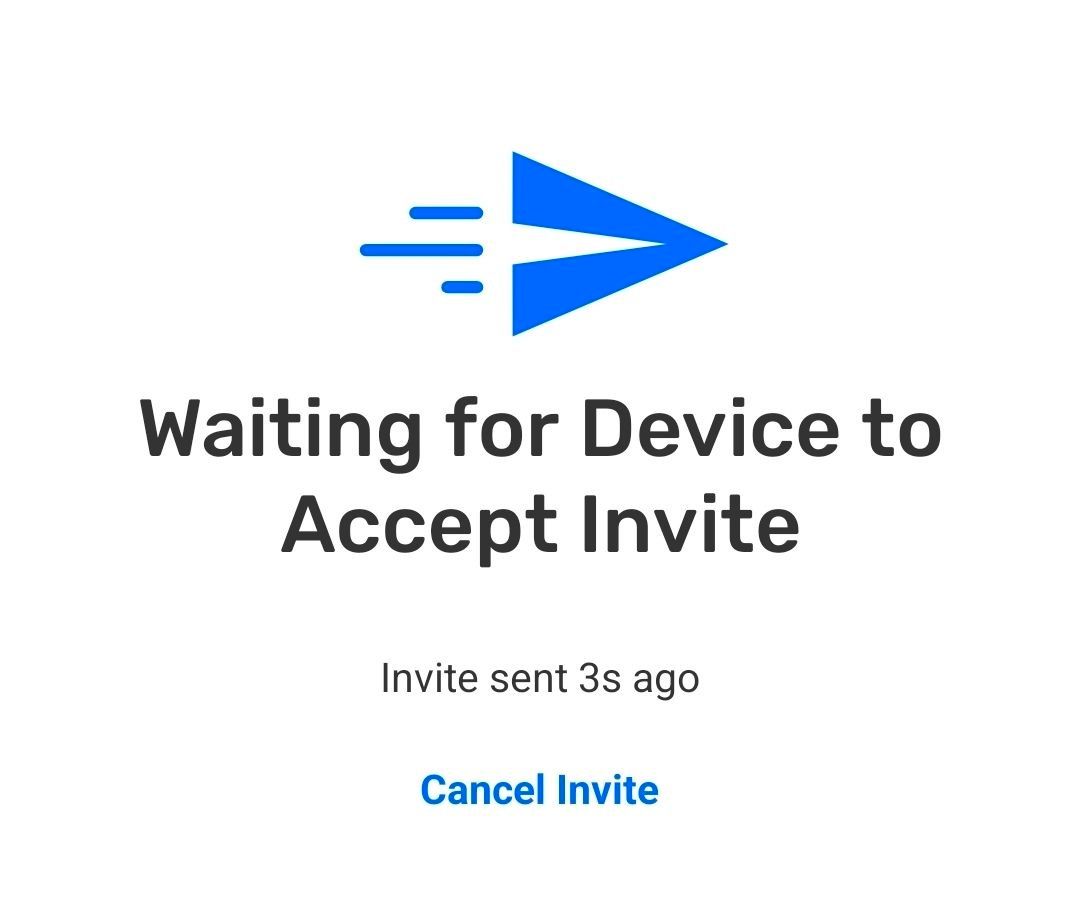
Communicate with the person with the device being invited, with instruction to wait until they receive the invitation, and accept it
Step 9: After the invited device accepts the invitation, a confirmation will appear.
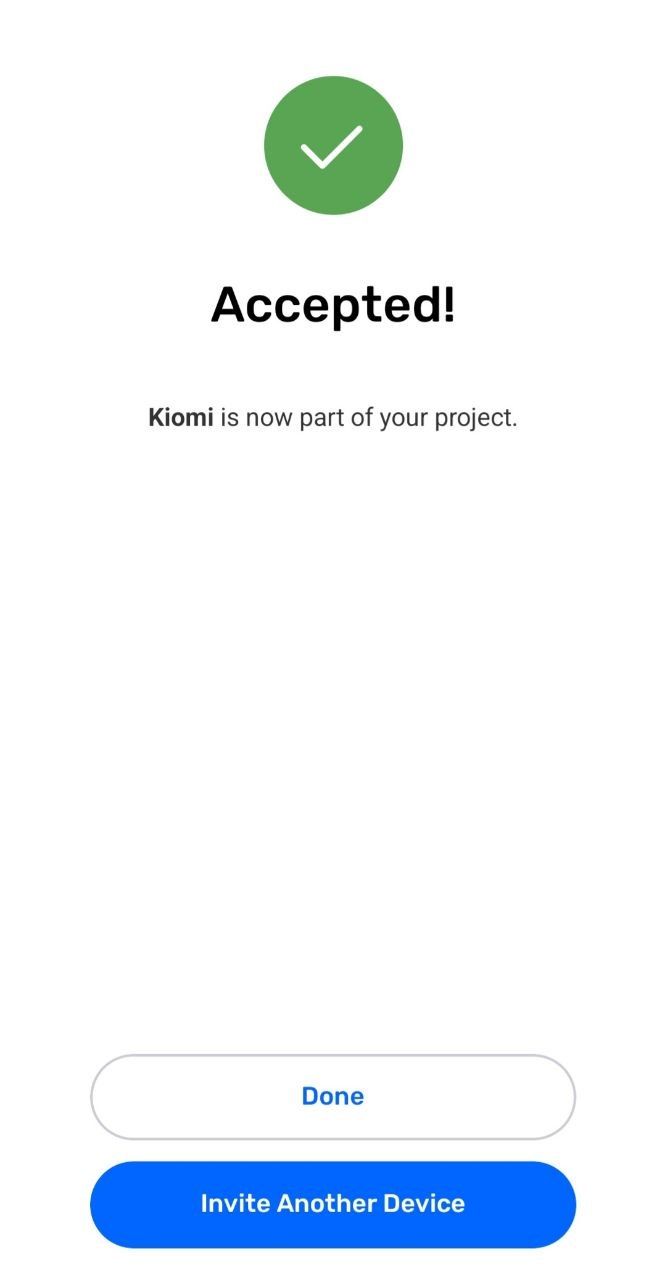
It can take a few moments for projects to be setup on newly invited devices. There is no need for a Coordinator to wait before inviting another device.
Joining an Existing Project
Joining a project is the second half of the process to adding a device to a project.
Step by Step - Mobile
Step 1: Connect to the same Wi-Fi router as the device sending the invitation, and wait for the invitation to appear.
Step 2: Select Join Project

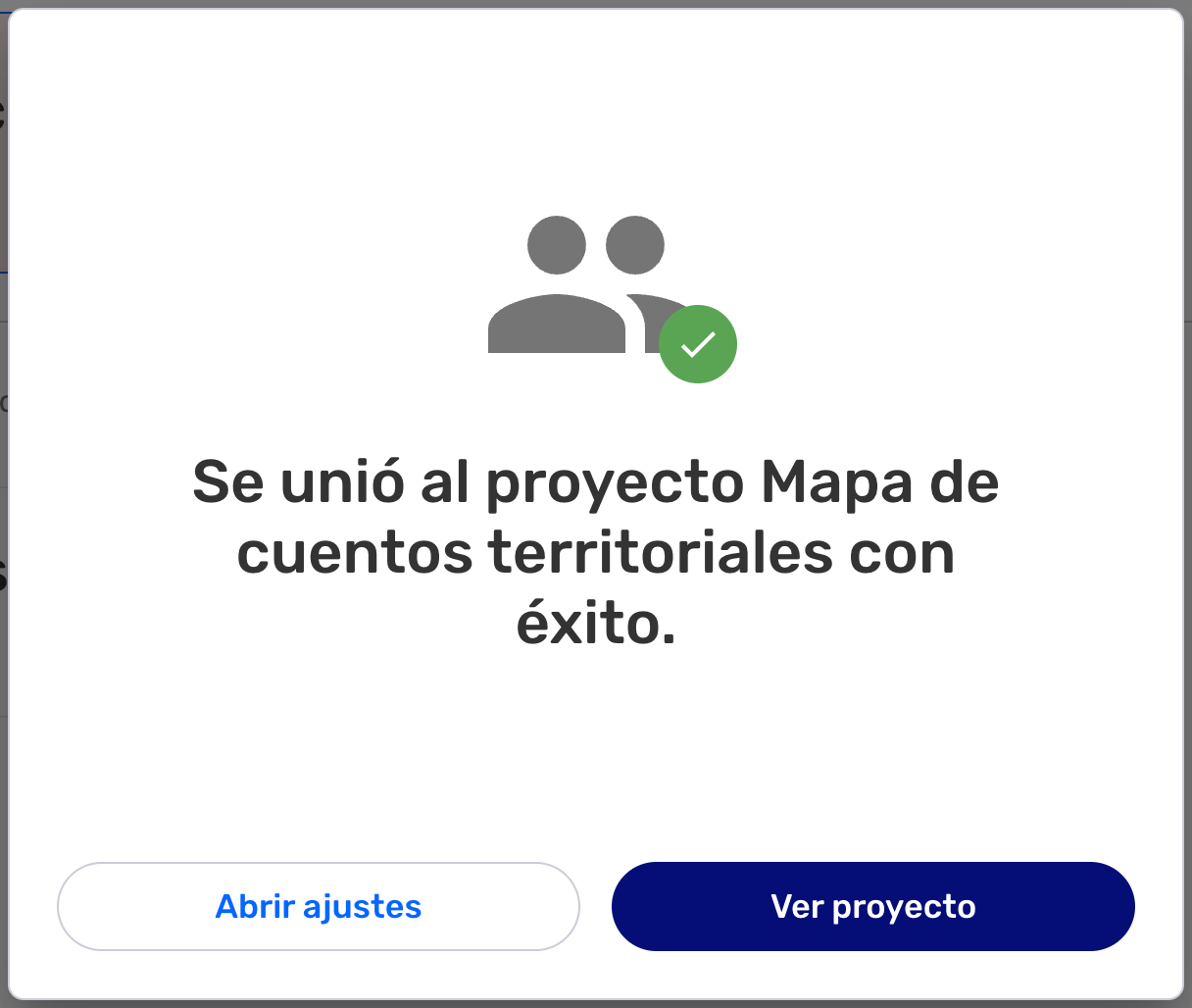
Step 3: CoMapeo will take a few moments to setup the newly joined project. Once the confirmation of success appears, this device is now part of the project.

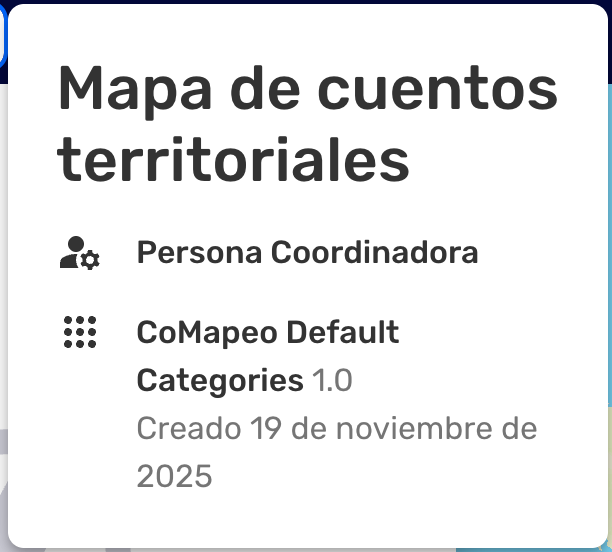
Look at the project card in the Menu to confirm information is being gathered in the correct project.
Step by Step -  Desktop
Step 1: Connect to the same Wi-Fi router as the device sending the invitation, and wait for the invitation to appear.
Step 2: Review the name of the project, and role assignment for the invitation. If correct, select Accept

Step 3: This device is now part of the project
Look at the project cart in the Menu to confirm information is being gathered in the correct project.
Related Content
Go to 🔗 Selecting Device Roles and Teams to learn about making your project collaborative