Removing a Device from a project
Removing a device can only be done by coordinator devices. This action updates project information about the team, which is visible to all in the project.
Coordinator Removes a Device
Step by Step
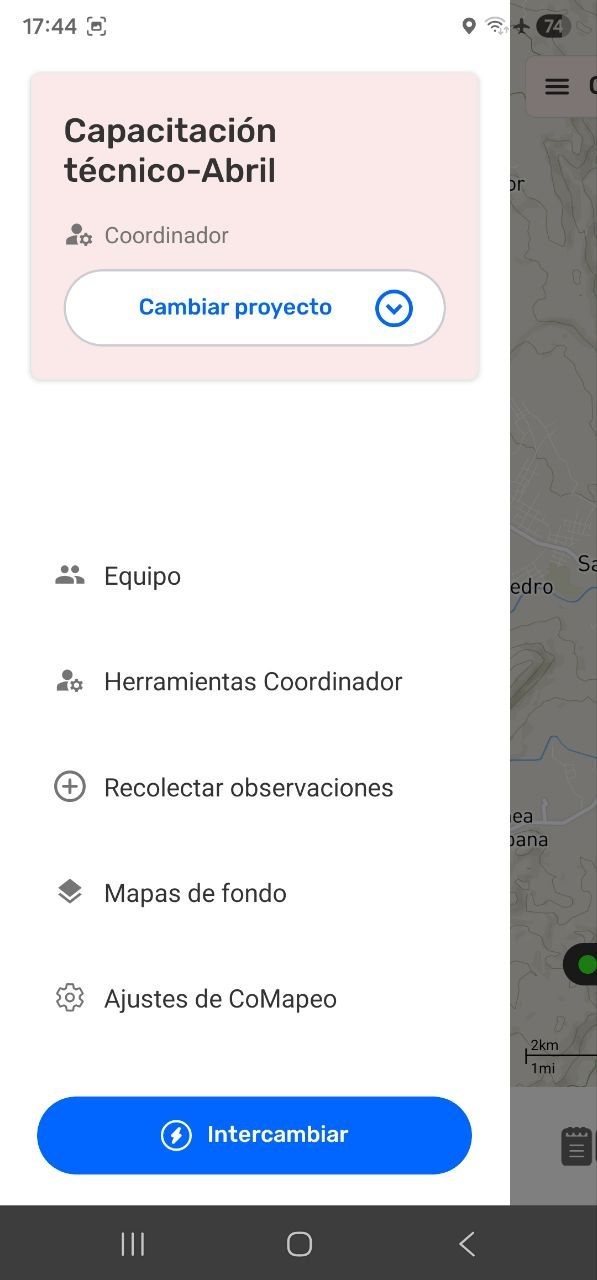
Step 1: In the  Menu, select
  Team.
Team.
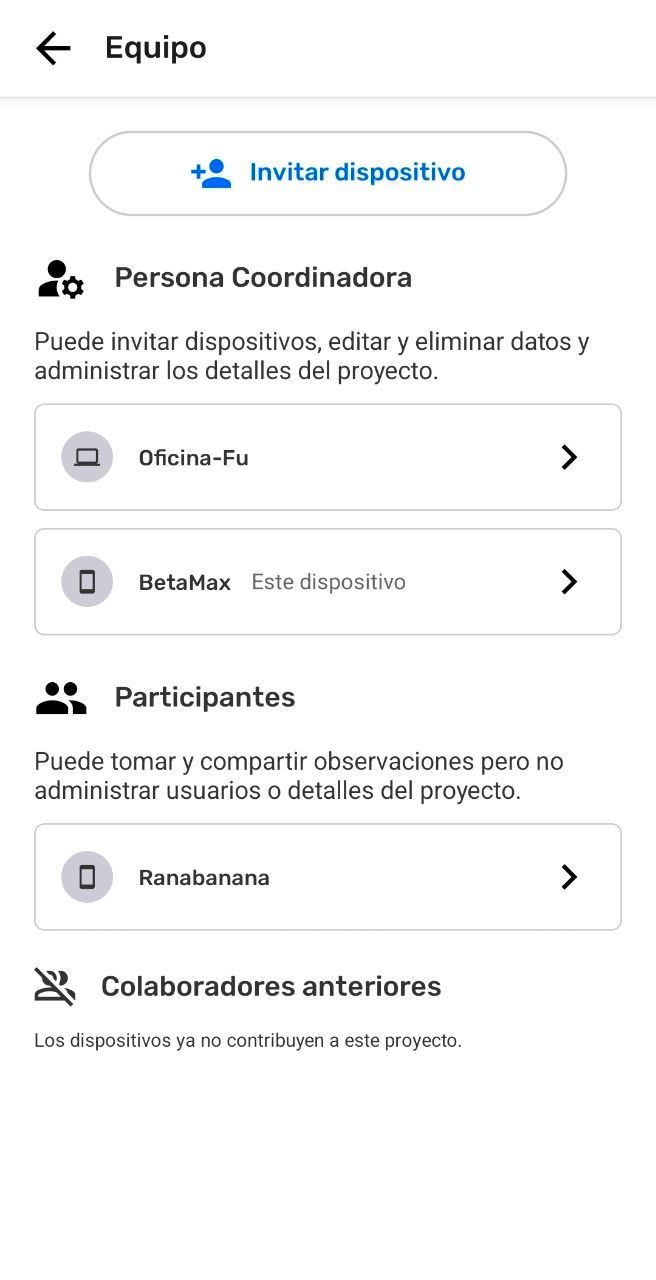
Step 2: Select the device to be removed
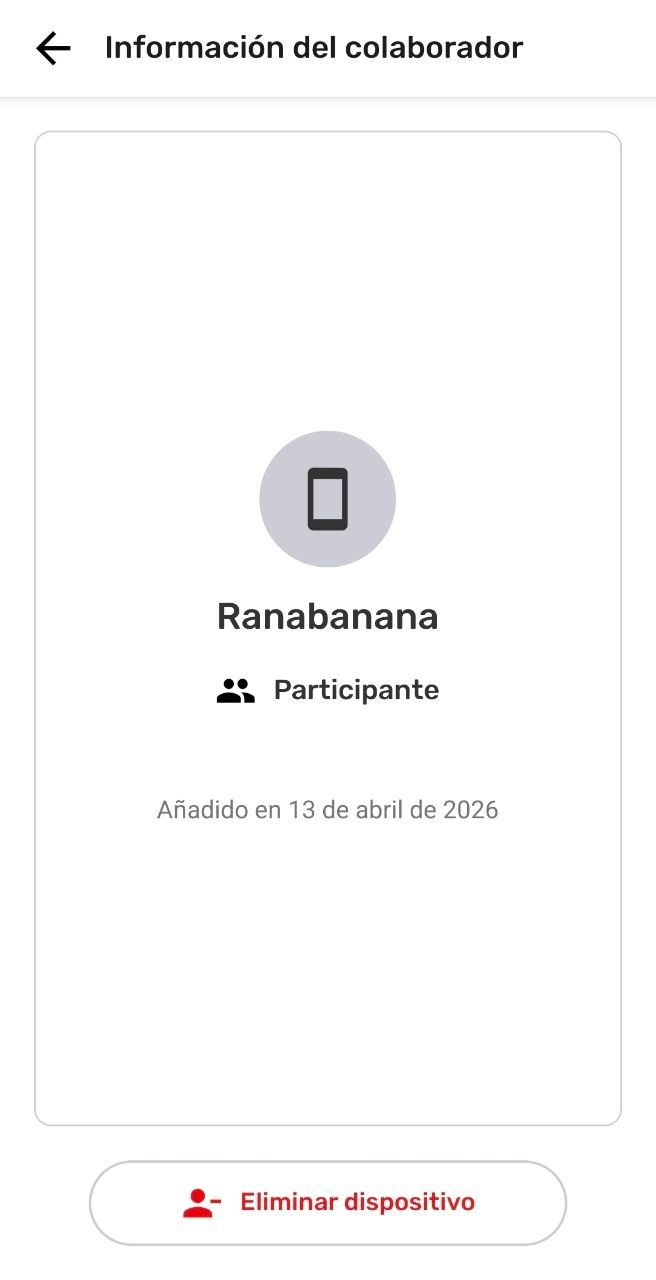
Step 3: Select  Remove device
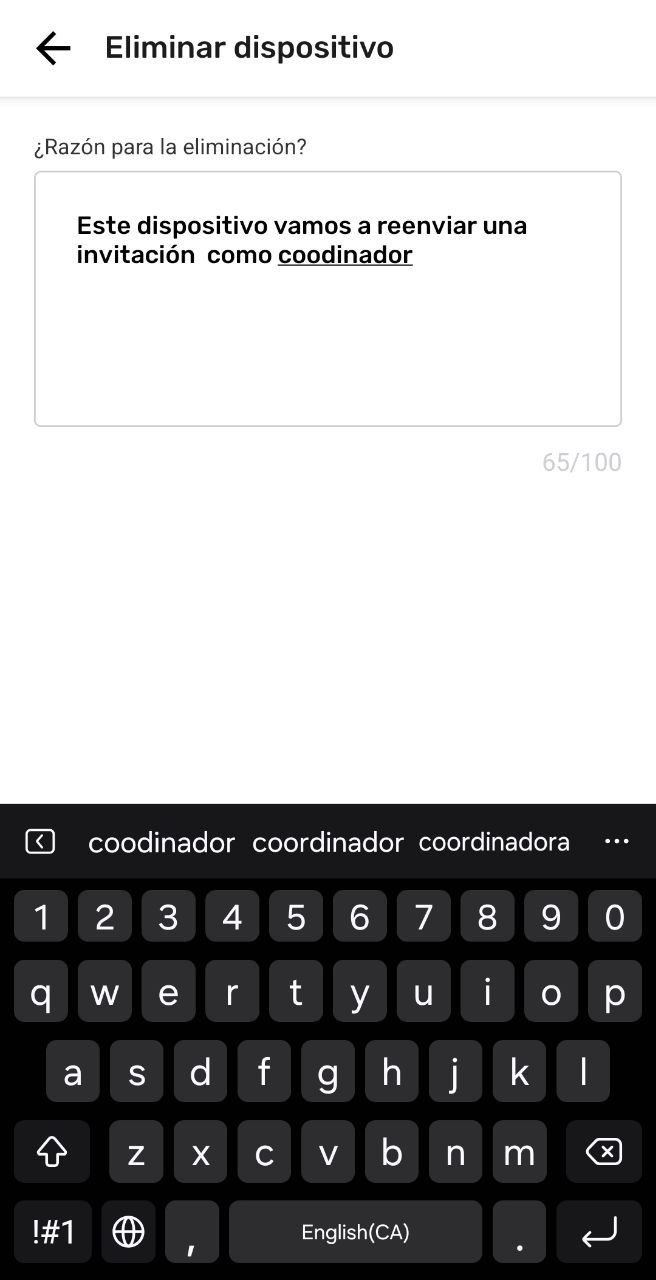
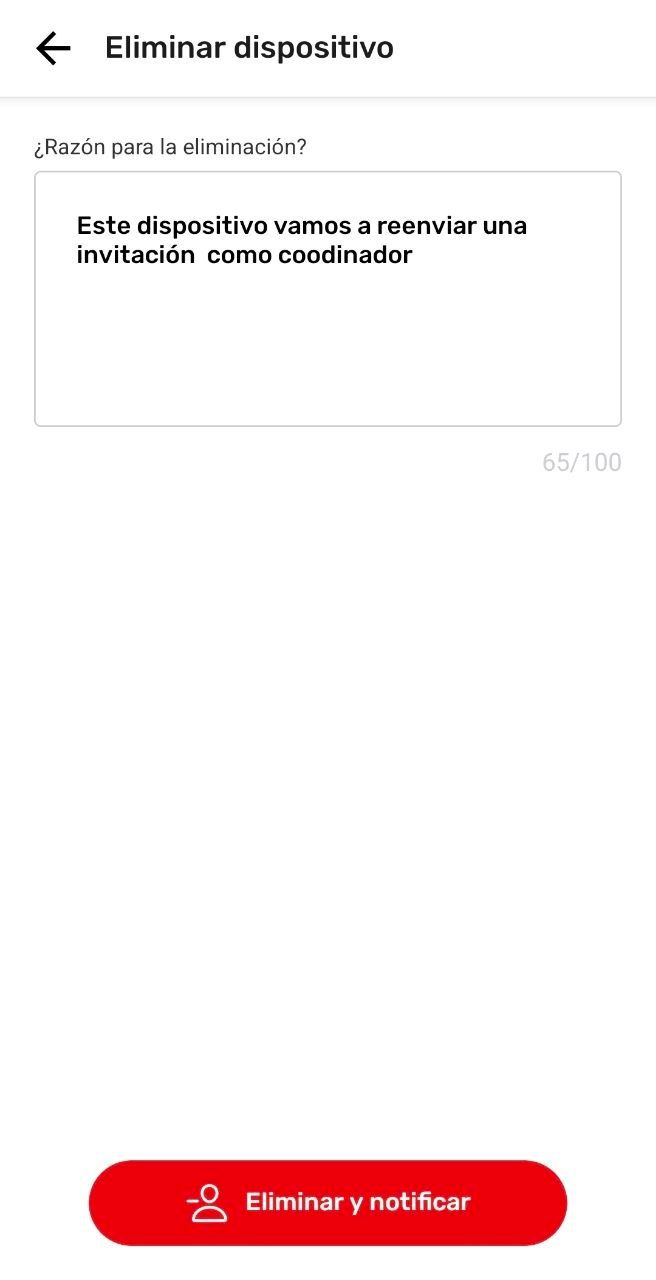
Step 4: Write the reason for removal. This will be visible to the device being removed.
Step 5: Close the Keyboard and select Remove and notify
Step 6: In this coordinator device, the selected device has been removed.
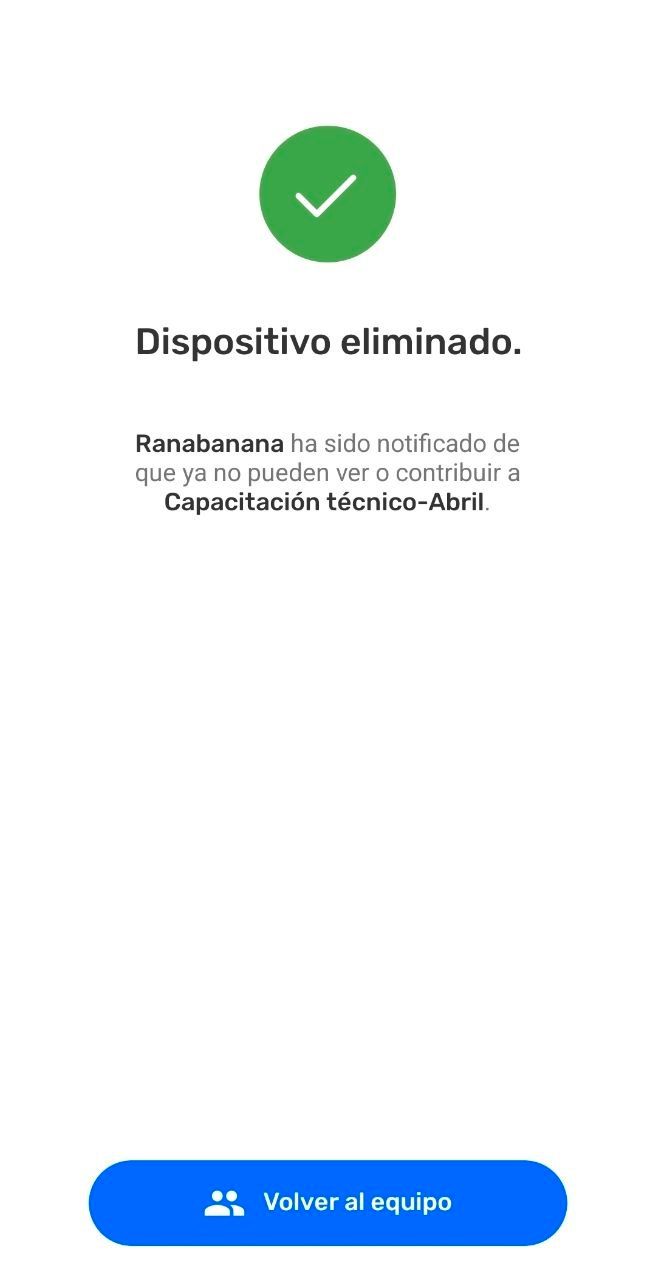
The devices removed need to be connected to the same Wi-Fi router or have Remote Archive set up in order to receive the removal notification. If this does not happen, the removed devices will continue in the project until the next time they connect with a different device in the project that has updated project information .
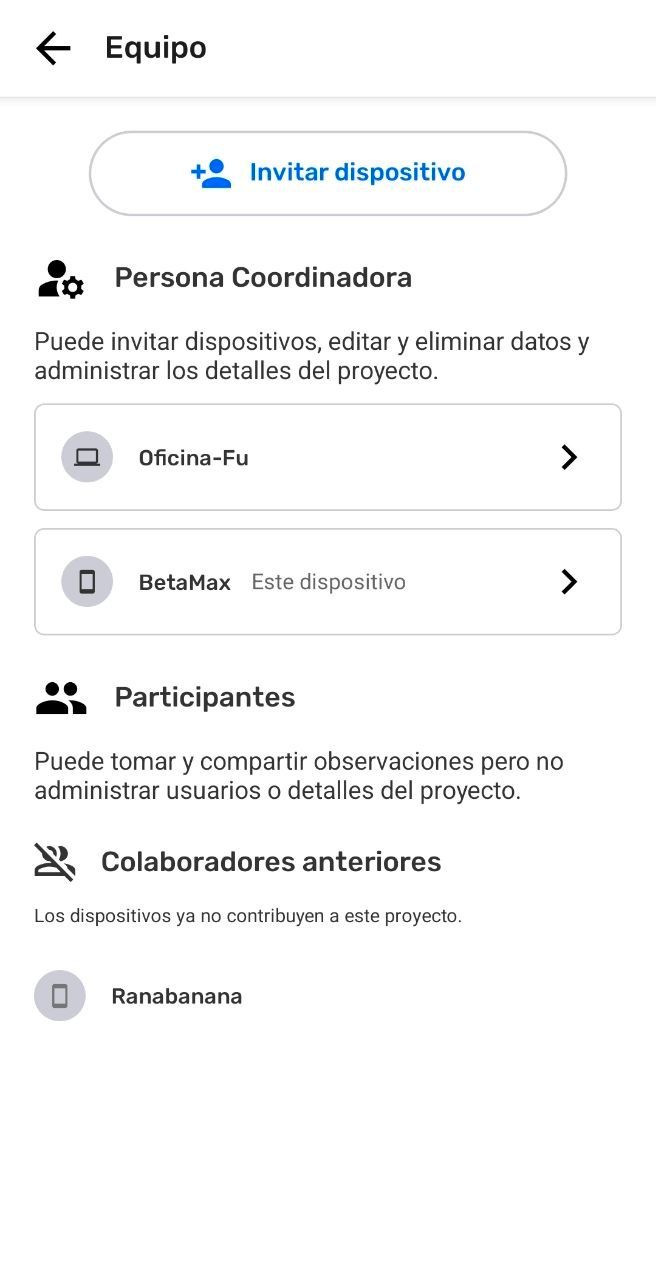
Step 6: Devices that were previously in a project are listed at the bottom.
Notifying the Removed Device
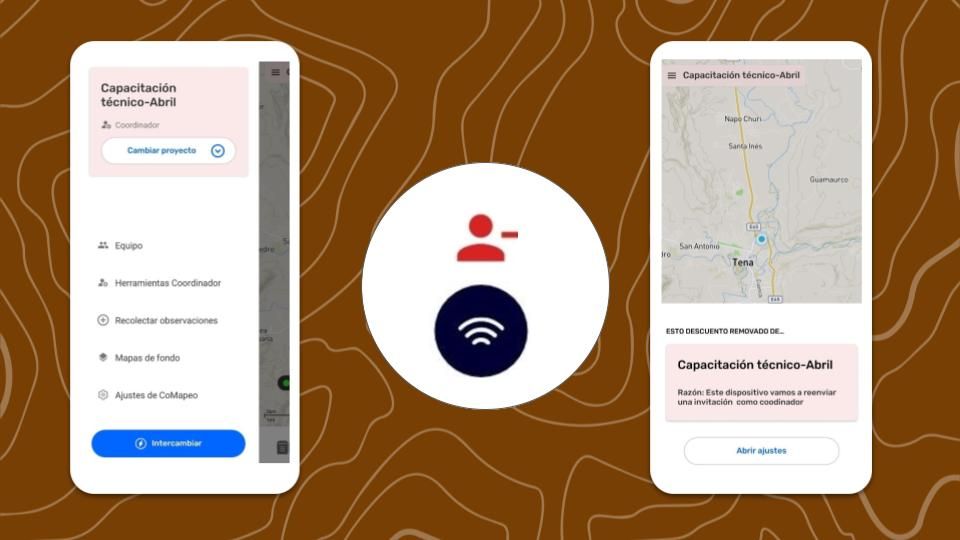
In an offline context, the notification of removal cannot be sent until the devices have connected to the same Wi-Fi router at the same time. The notification will include the reason written on the coordinator device that removed them.
Updating project information from devices in the team
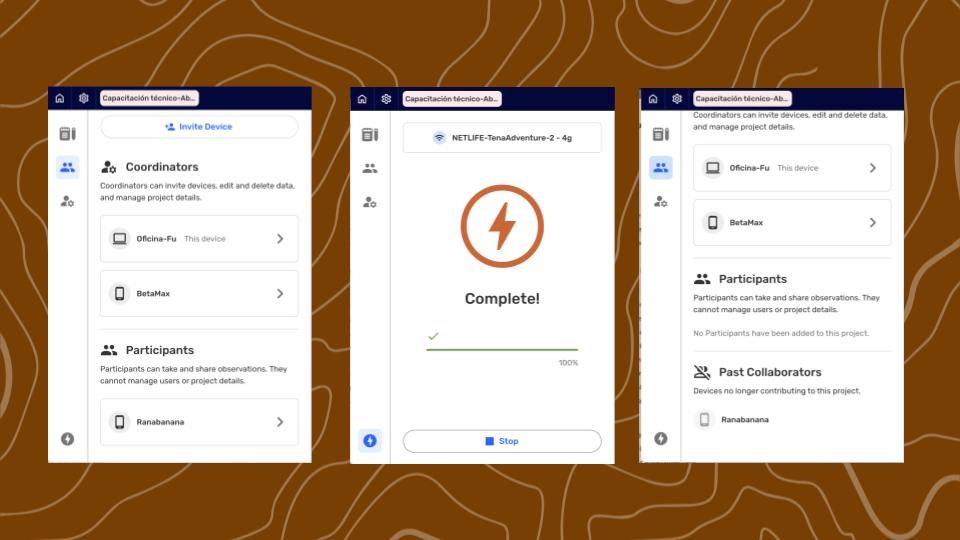
The Team list is updated every time devices  Exchange.
The notification about device removal can be passed on through any device that has exchanged the updated information about the removed device.
Related Content
Go to 🔗 Understanding Projects
Go to 🔗 Leave a Project
Go to 🔗 Removing a device from a Project
Go to 🔗 Understanding How Exchange Works