Creating a New Project
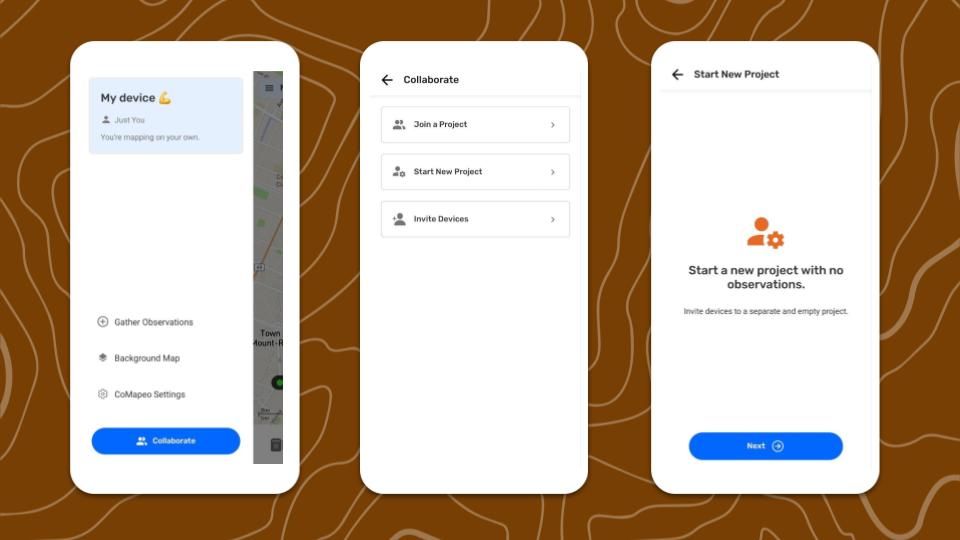
Starting a New Project
A new Project, will start with no observations, the CoMapeo Categories, and default Background Map.
Step by Step
Step 1: Go to the  Menu.
Menu.
Step 2: Tap on  Collaborate.
Step 3: Select  Start New Project.
Step 4: Add a project name and continue
Step 5: Select a  Project Statistics option. This can be changed in Coordinator Tools
Step 5: Your new project is ready!
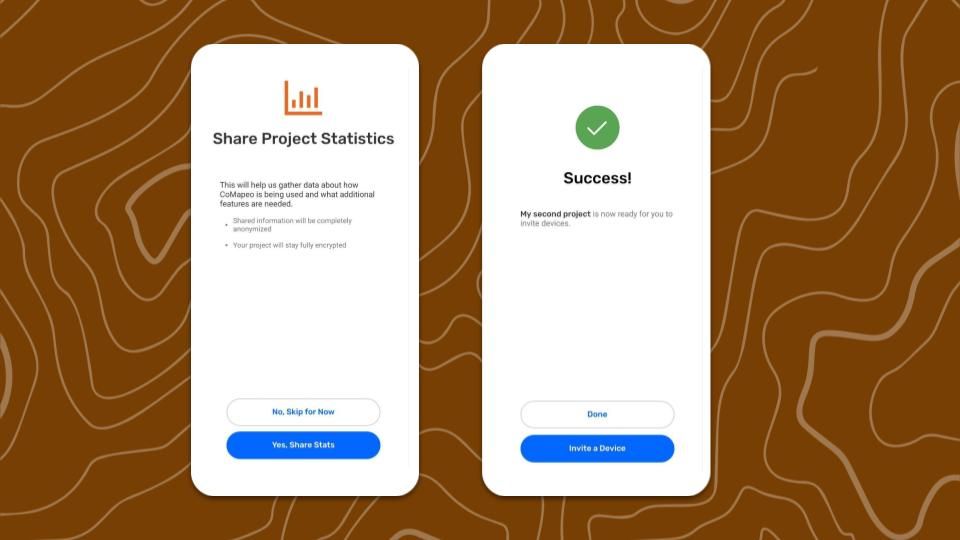
The project that you started when first onboarding onto CoMapeo will still be available go back to
The device that creates the New Project is the Coordinator and has access to new menu options. Teams and Coordinator Tools will appear in the Menu
Go to 🔗 Inviting Collaborators for instructions on inviting new devices to the team
Coordinator tools
 Project info
-
Name
-
Description - A description can be added to articulate the project purpose or objectives for all teammates to refer to as needed
-
Color
 Remote Archive
Optional tool to use a local server as a backup
Go to 🔗 Using a Remote Archive
 Project Categories
Displays details for current Categories Set
Go to 🔗 Changing Categories Set
Project Statistics
Setting for sharing anonymized analytic information for improving development of CoMapeo
Related Content
Go to 🔗 Planning and Preparing for a Project
Go to 🔗 Selecting Device Roles and Teams to learn about making your project collaborative
Go to 🔗 Understanding How Exchange Works for full explanation