Crea un Nuevo Proyecto
Crear un nuevo Proyecto
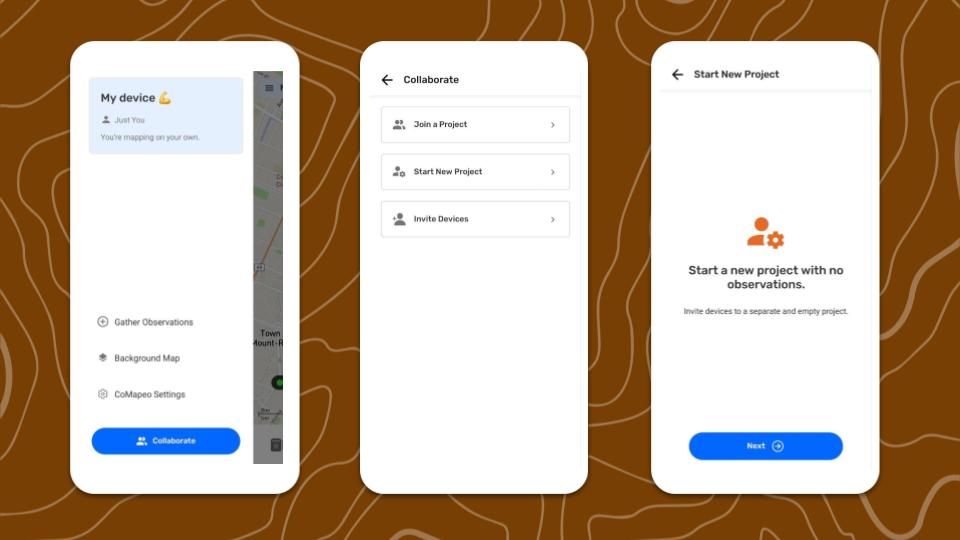
Iniciar un nuevo Proyecto
Un nuevo Proyecto comenzará sin observaciones, con las categorías y mapa de Fondo predeterminados de CoMapeo.
Paso a Paso
Paso 1: Ve al  Menú.
Menú.
Paso 2: Toca en  Colaborar
Paso 3: Selecciona  Iniciar nuevo proyecto.
Paso 4: Agrega un nombre de proyecto y continúa
Paso 5: Selecciona una opción de  Estadísticas del Proyecto. Esto puedes cambiarlo luego en Herramientas del Coordinador
Paso 6: ¡Tu nuevo proyecto está listo!
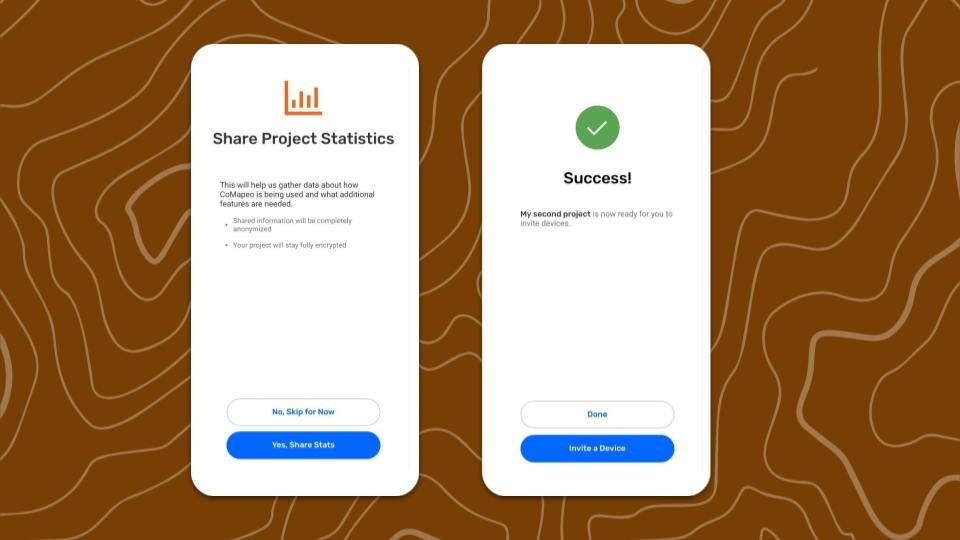
El proyecto que iniciaste al registrarte por primera vez en CoMapeo seguirá estando disponible, para volver en cualquier momento.
El dispositivo que crea el nuevo Proyecto tiene rol de Coordinador y acceso a nuevas opciones de menú. Equipos y Herramientas de Coordinador aparecerán en el Menú
Ir a 🔗 Invita Colaboradores para saber cómo invitar nuevos dispositivos al equipo
Herramientas del Coordinador
 Información del proyecto
-
Nombre
-
Descripción: Se puede agregar una descripción del propósito u objetivos del proyecto para que todos los integrantes del equipo estén alineados y consulten según sea necesario.
-
Color
 Archivo remoto
Herramienta opcional para usar un servidor local como respaldo.
Ir a 🔗 Usa un Archivo Remoto
 Categorías del Proyecto
Muestra detalles del Conjunto de Categorías actual
Ir a 🔗 Cambia el Conjunto de Categorías
Estadísticas del Proyecto
Configuración para compartir información analítica anónima para mejorar el desarrollo de CoMapeo
Contenido Relacionado
Ir a 🔗 Planificación y Preparación para un Proyecto
Ir a 🔗 Selección de roles y equipos de dispositivos para aprender cómo hacer tu proyecto colaborativo
Ir a 🔗 Entiende cómo funciona el Intercambio para una explicación más detallada.
¿Tienes Problemas?
Ir a 🔗 Solución de Problemas: Mapeo con Colaboradores