
Installing CoMapeo & Onboarding
CoMapeo Mobile is available for  Android on the Google play store and as an APK
CoMapeo Desktop is available for Windows, Linux and Mac
Go to 🔗 Get CoMapeo
Installing CoMapeo Mobile
Go to 🔗 Get CoMapeo
💡 Tip: Before installing CoMapeo make sure the device battery is charged, and there is a stable internet connection for easy downloading.
Consider doing a maintenance check of your device before installing new apps
CoMapeo on Google Playstore
Installing this way is recommended because Google Playstore makes app updates easy.
Step 1: Search for CoMapeo, created by Awana Digital, on Google Playstore,
Step 2: Select Install
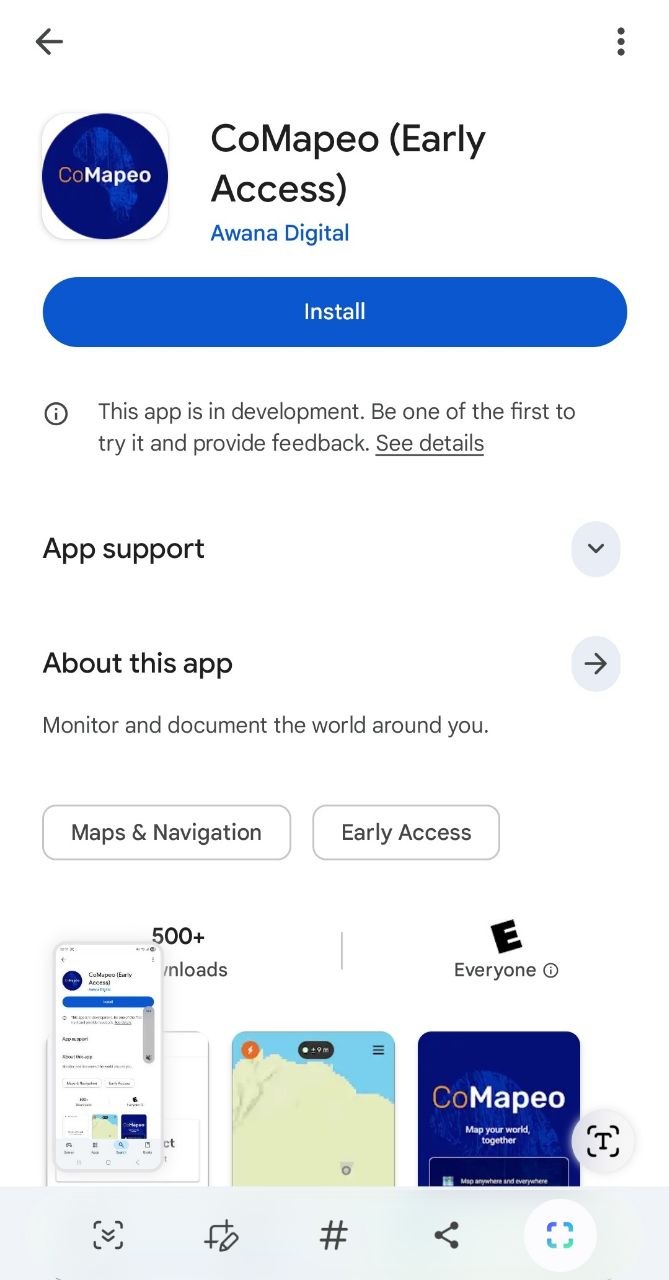
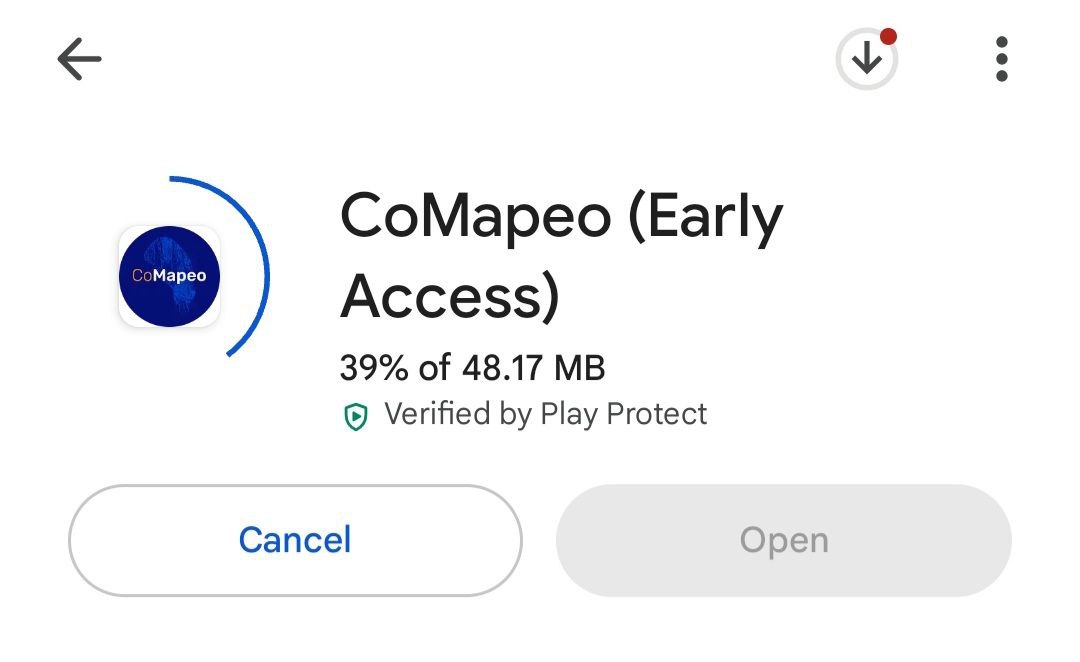
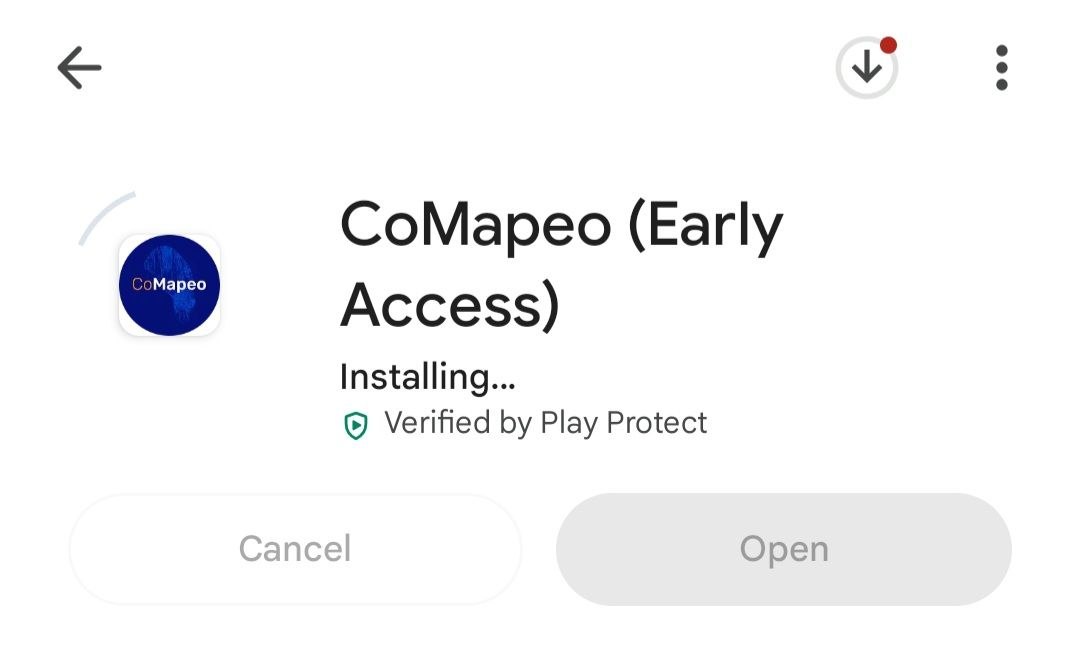
Step 3: Wait for CoMapeo Mobile to download, then install
[object Object]
[object Object]
[object Object]
[object Object]
[object Object]
[object Object]
[object Object]
👉🏽 More: An alternative option is to download the
Go to 🔗 Get CoMapeo
App Startup
Look for the CoMapeo icon wherever downloaded apps go on you device
CoMapeo Mobile, like all new apps, will appear at the end of the apps screen of Android devices

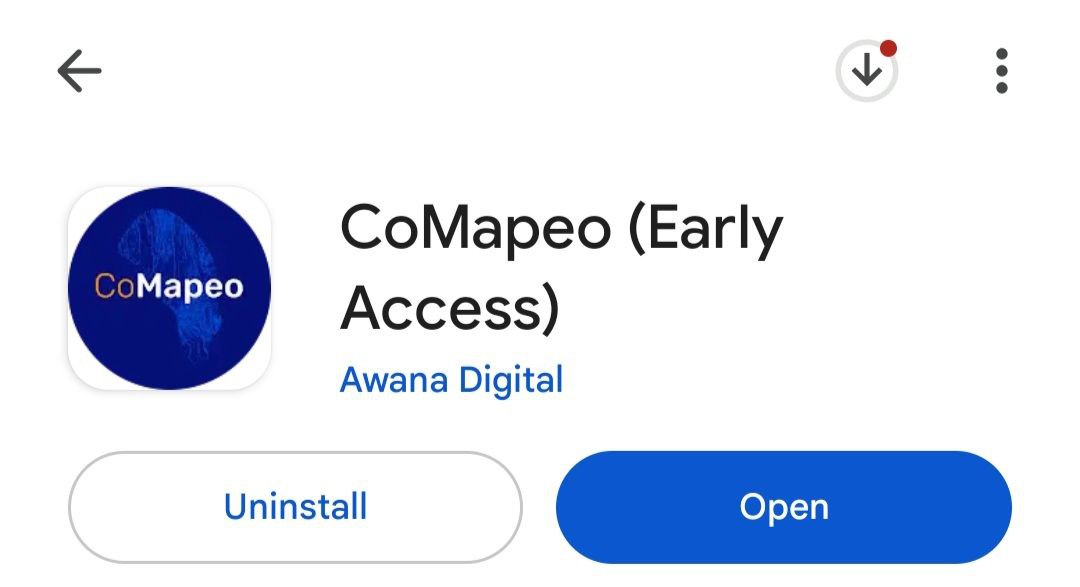
💡 Tip: CoMapeo can be opened directly from Google Play Store after installation is complete
Onboarding
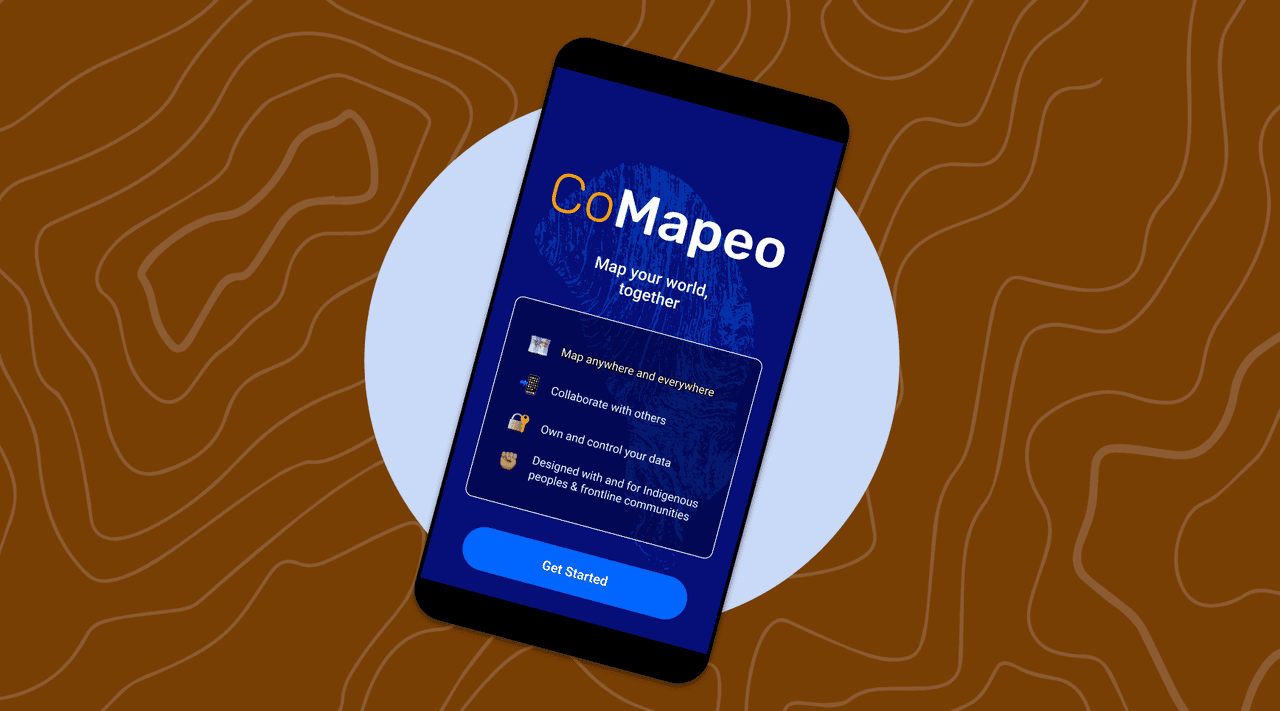
This is a required step to help configure devices to allow CoMapeo to use available features including storage and essential sensors like the camera and GPS. To keep this a easy experience, CoMapeo will request permission for additional sensor access the first time using specific features like tracks and audio. Included in onboarding are:
Welcome Screen
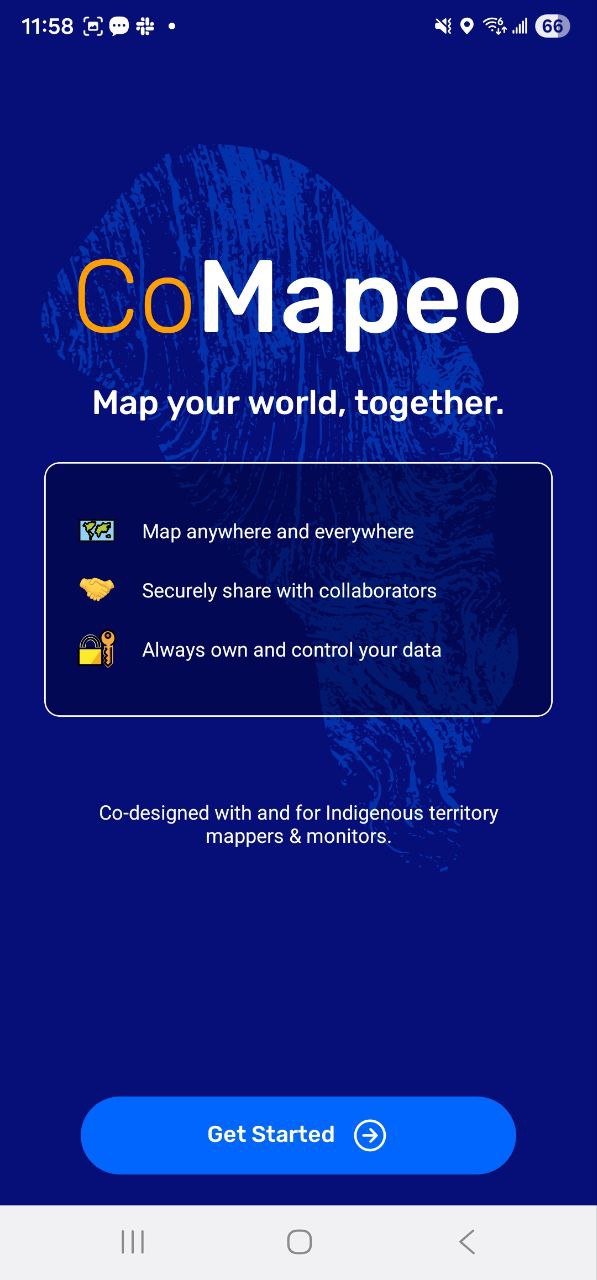
You will be invited to [Get Started] and asked for device permissions upon startup.
Data & Privacy Policy
The app will present the data it collects, and you can choose to [opt in] or [opt out]. This can also be changed later via Settings > Data Privacy.
See Privacy Policy in English : CoMapeo Data & Privacy
Device Naming
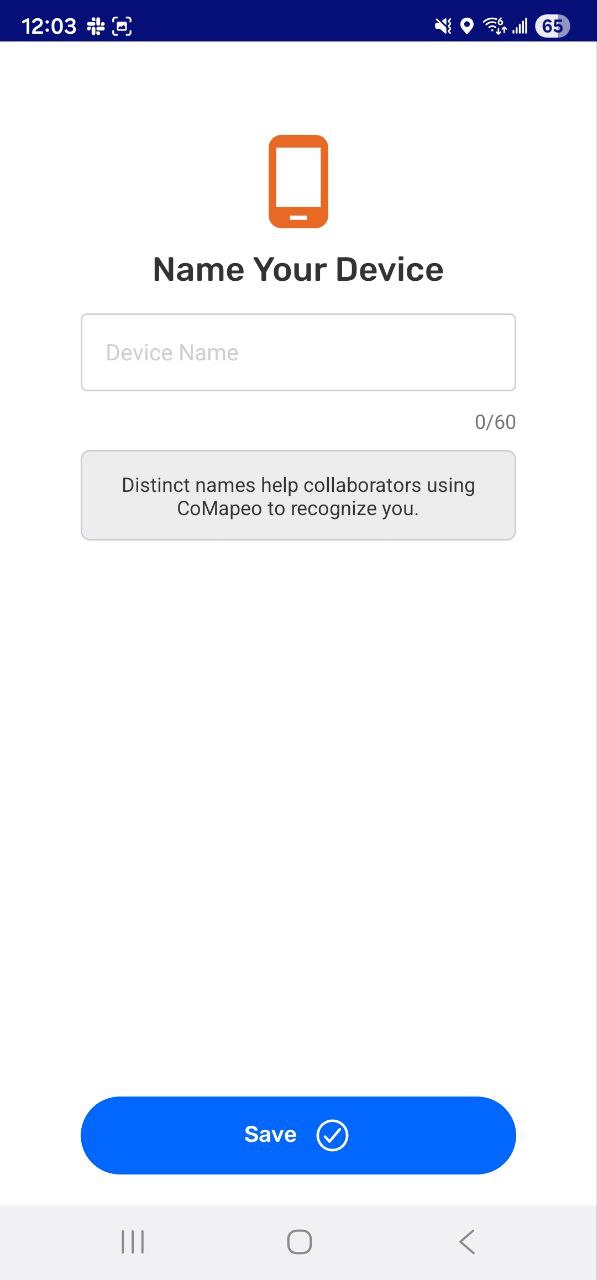
You must enter a name for the device. This is the name other devices will see when inviting you to project, and will display in the list of project members.
👣 Step by Step: Mobile
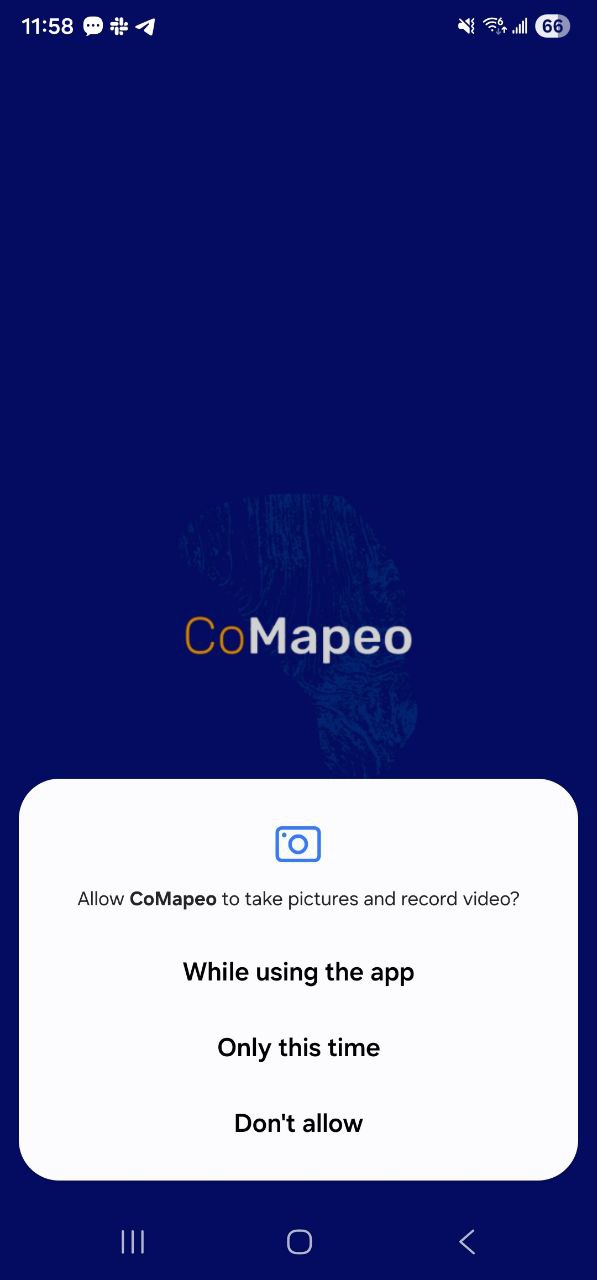
Step 1: Grant permission for CoMapeo to take photos. The CoMapeo camera is one of the main features of the app. Without this permission CoMapeo camera will show a black screen. Other parts of the app will still work.
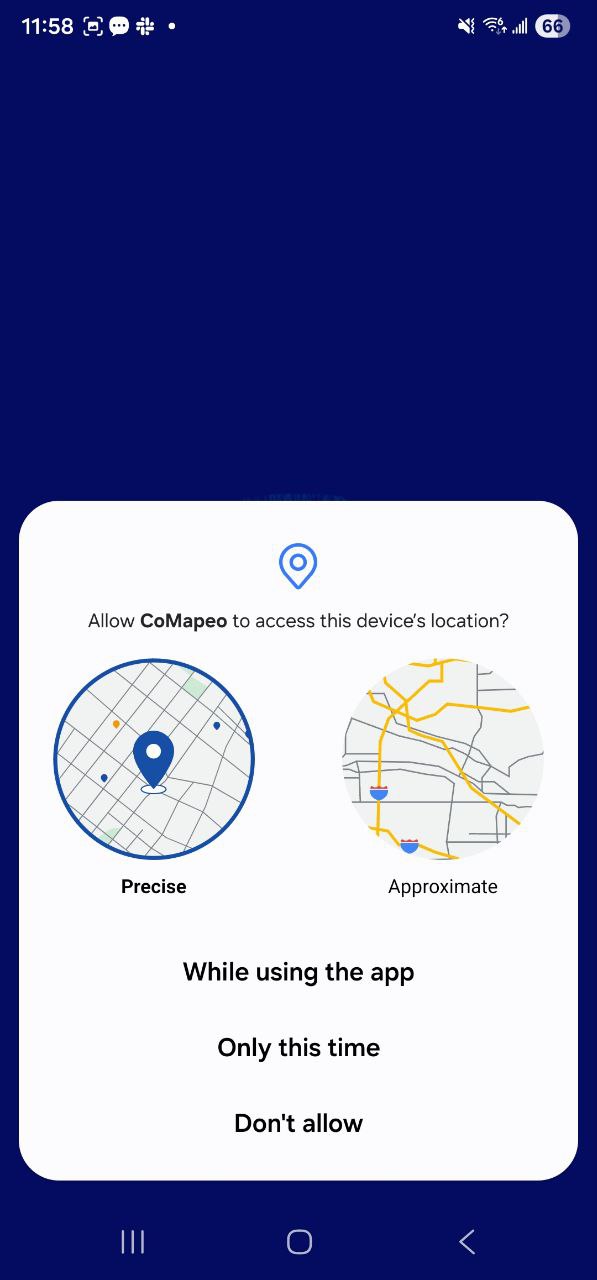
Step 2: Grant permission to access location
CoMapeo needs to access a device’s location in order to collect GPS coordinates to save in Observations. Without this permission CoMapeo will still be able to used to a limited degree. Observations may still be saved with an option enter GPS coordinates manually.
Newer Android versions offer an option of precise or approximate location data. Choose precise for the most accurate data collection results.
Step 3: Select Get Started on the CoMapeo Welcome screen
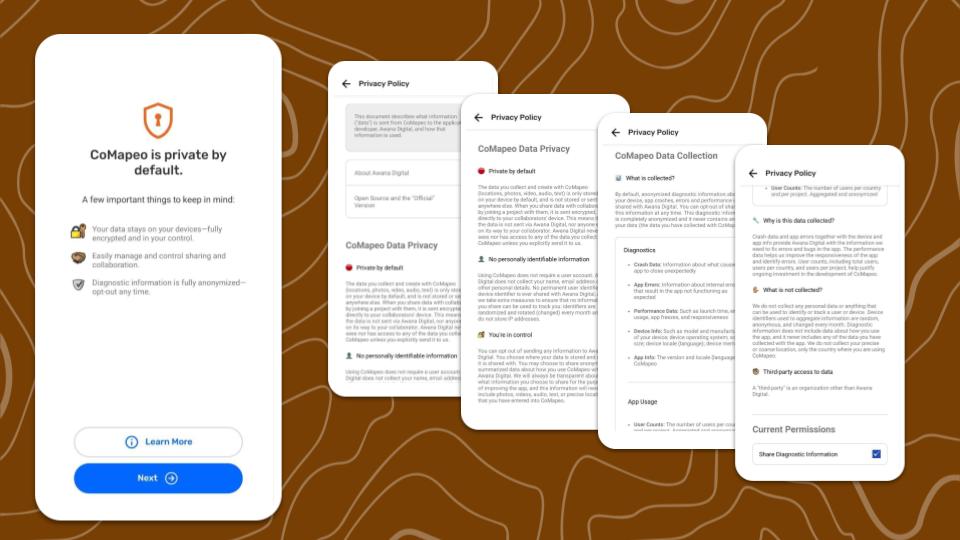
Step 4: Learn more about Data and Privacy
Find out more about how Awana Digital has built CoMapeo to keep your data safe and secure.
Click on Learn More for further details on data privacy and what data is sent to Awana Digital to help us improve the app.
Here you can also choose to opt in or opt out of sharing diagnostic data. This can also be changed later via  Settings → Data Privacy.
Go to 🔗CoMapeo Data & Privacy to review the Privacy Policy in English
Step 5: Name your device
-
Names are required for all devices in CoMapeo.
-
Device names are displayed in CoMapeo collaboration features like inviting teammates to join a project and viewing teammates in a project.
-
Names can be change with ease.
-
Naming devices in a team project may need to follow protocols or agreement made with the people on the team.
-
Options for names include, the name of the person who owns the device, a nickname for the device, or a codename used in your team for security reasons.
💡 Tip: Use something anonymous for contexts where safety issues are a concern. Put a sticker on each phone with its name if they are being used by multiple people.
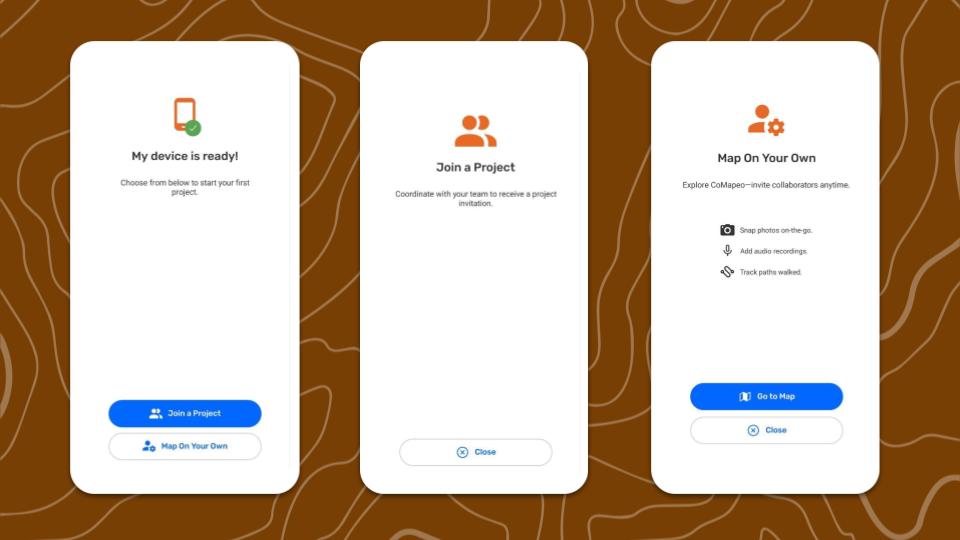
Step 6: CoMapeo is ready to use! Choose to  Join a Project or
  Map On Your Own
To explore CoMapeo and set up a project, select Map On Your Own.
💡 Tip: To join a project, a different CoMapeo user must have a project setup and must invite devices to create a team on CoMapeo Go to 🔗 Inviting Collaborators for instructions
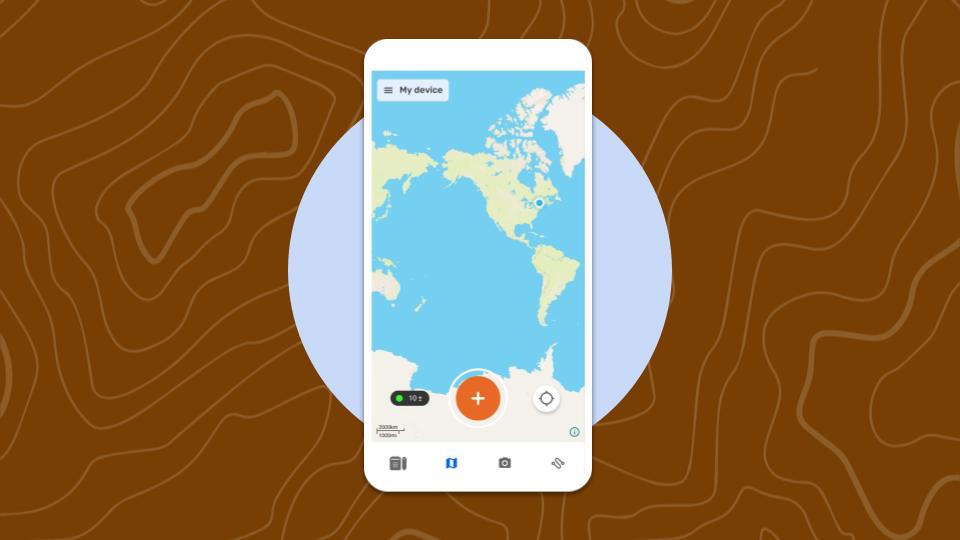
Next time CoMapeo is started, it will be on the 
Go to 🔗 Initial Use and CoMapeo Settings
Update CoMapeo
The most up to date versions of CoMapeo are available on the CoMapeo Website and in the Google play store
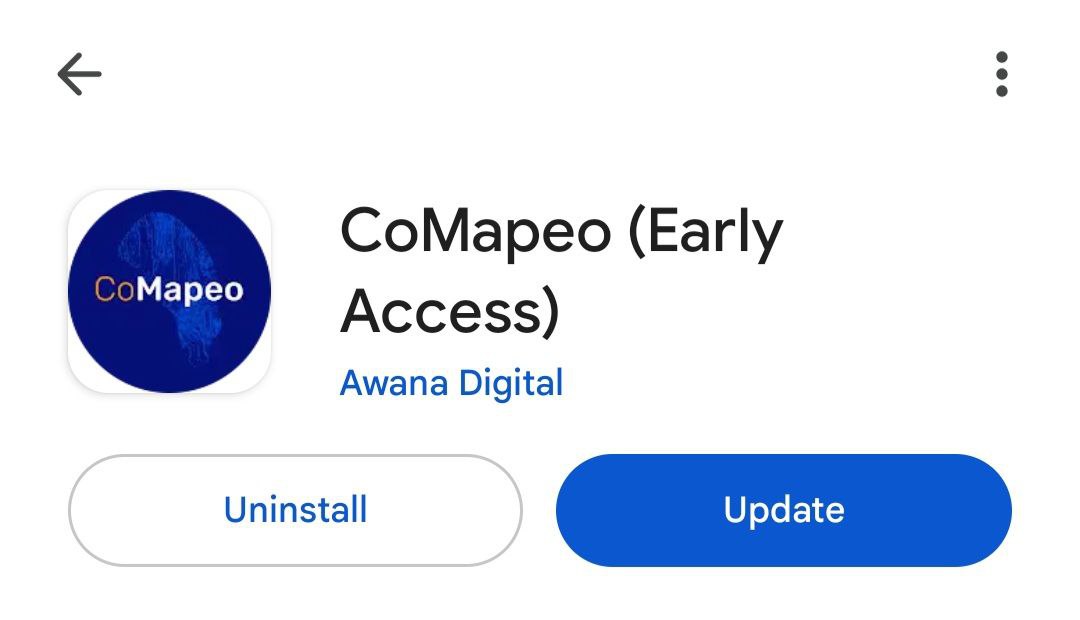
Google Play will display an update button when a new release is available with bug fixes and, sometimes, new features.
Go to 🔗 Get CoMapeo
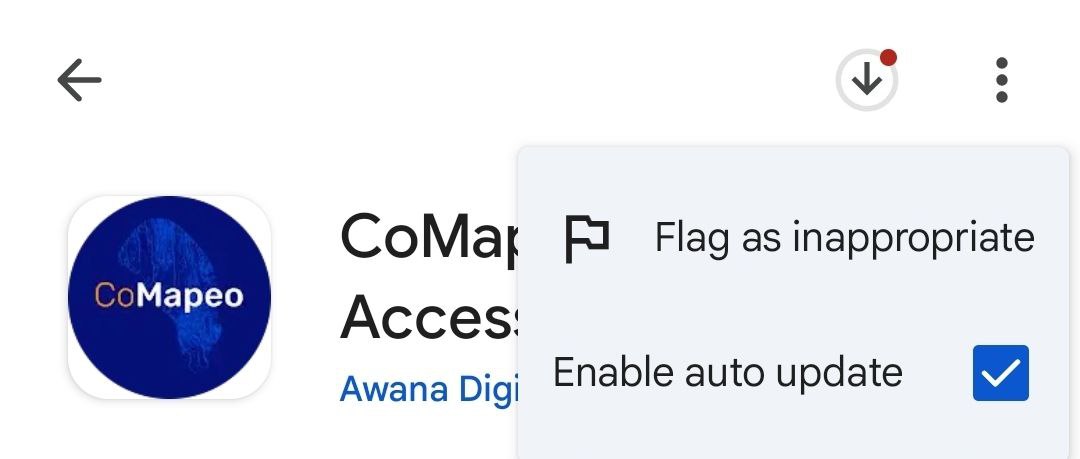
💡 Tip: CoMapeo Mobile can be set to auto update in the options available in the Play store app
Related Content
Go to 🔗 Initial Use & CoMapeo Settings
Go to 🔗 Uninstalling CoMapeo