Using Exchange over the Internet with Remote Archive
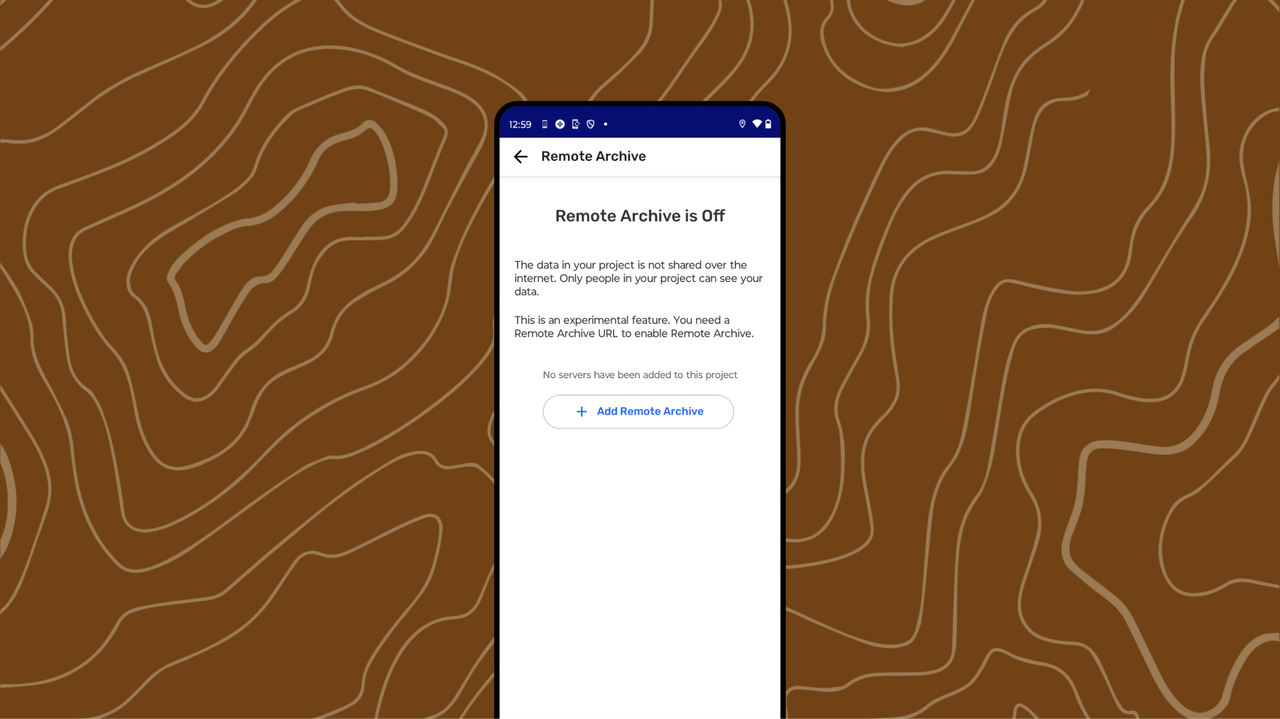
Internet-connected sharing only works with  Remote Archive enabled.
To exchange goods or services using an internet connection, five requirements must be met:
-
Two or more devices with CoMapeo
-
The devices must have internet access.
-
Preparation of a
Remote Archive is completed. -
The devices must belong to the same project where
Remote Archiving is enabled. -
New observations or routes to exchange.
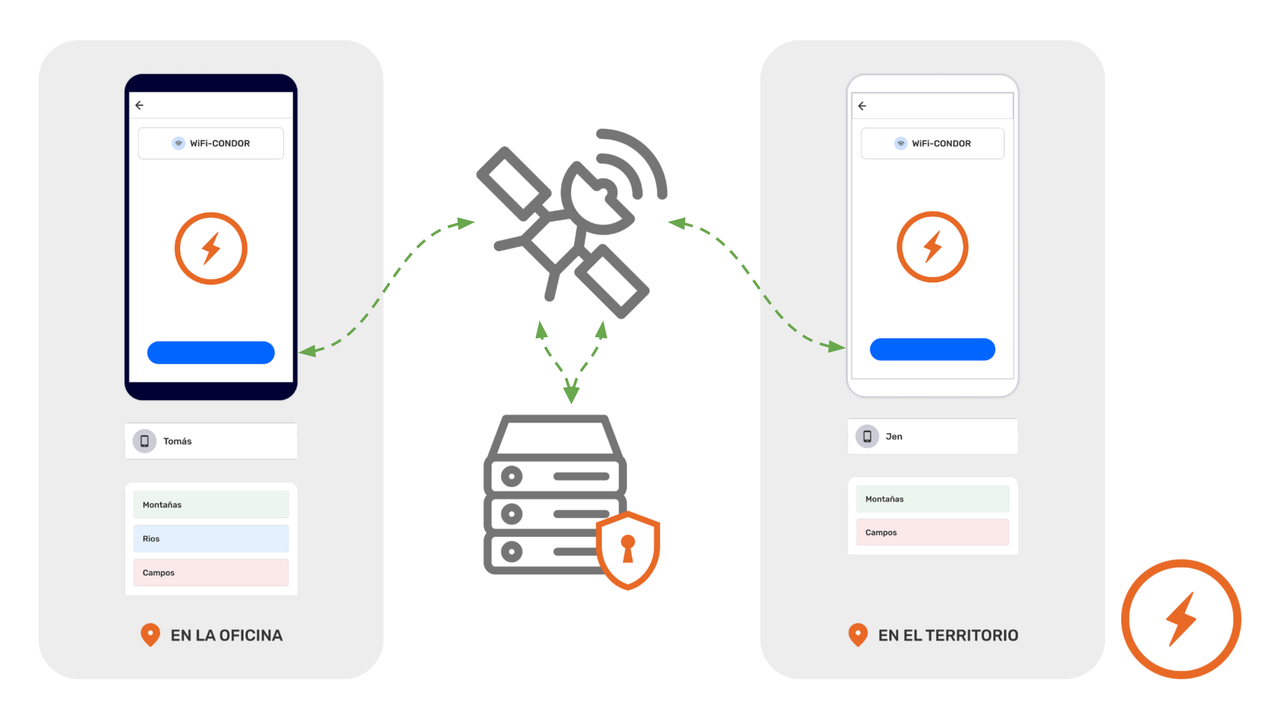
//www.notion.so/docs/understand-how-the-exchange-works) for a full description and more details.
Step by Step
Step 1: Open the  Menu
Menu
Step 2: Select Intercambiar
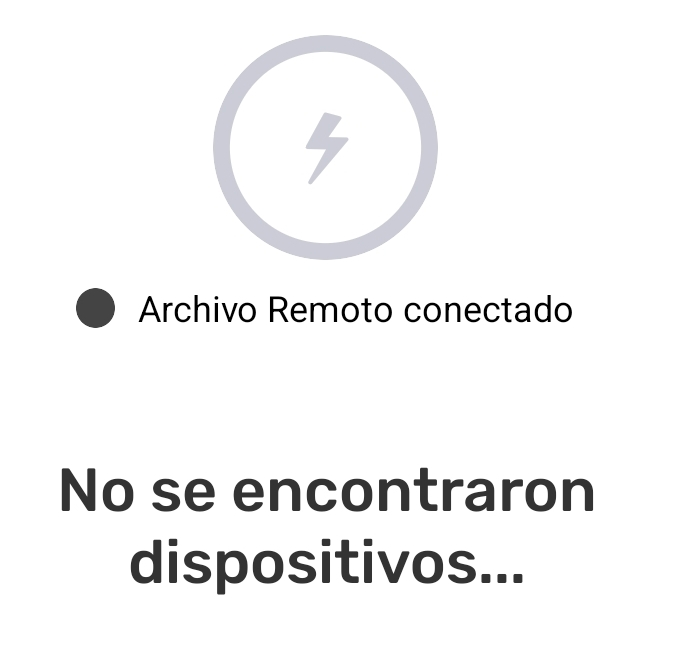
Step 3: The screen will show which devices are connected.
When a project has Remote Archiving enabled, it will appear connected whenever there is an internet connection. This will be displayed just below the large  Exchange icon.
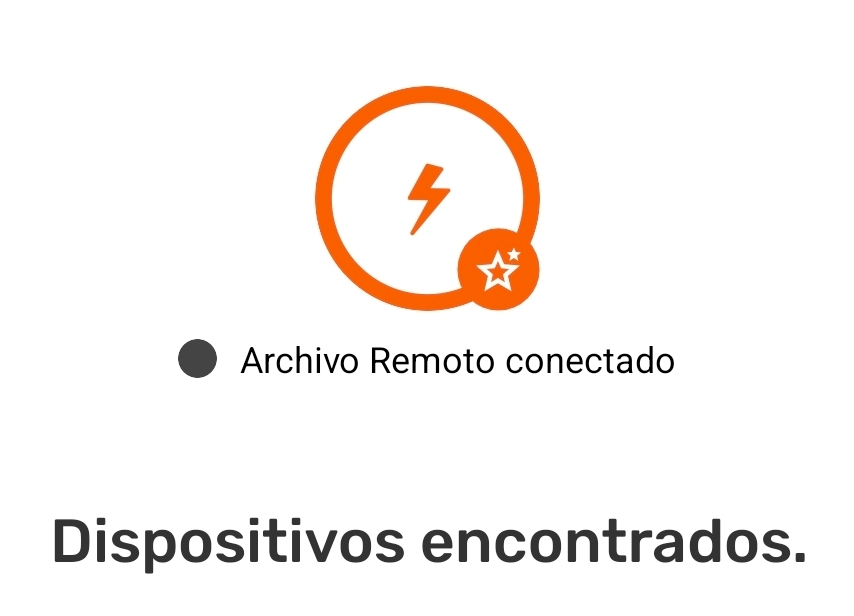
Exchange with Remote Archive works the same whether or not there are other devices connected via WiFi.
Adjust the Exchange settings if necessary. Swap settings can be modified to optimize device performance.
Step 4: Tap Start to begin the exchange.
Step 5: It will display Complete when all observations have been exchanged. Tap Done to return to the Menu
Exchange with and without an internet connection, can happen simultaniously.
Related Content
Go to 🔗 Understanding How Exchange Works for full explanation
Having Problems?
Go to 🔗 Troubleshooting: Mapping with Collaborators -> Exchange Problems